Control Panel
Use the control panel to operate the machine and configure the settings. If the display is difficult to see, adjust the angle of the control panel, as shown on the right. | 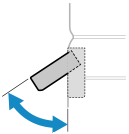 |
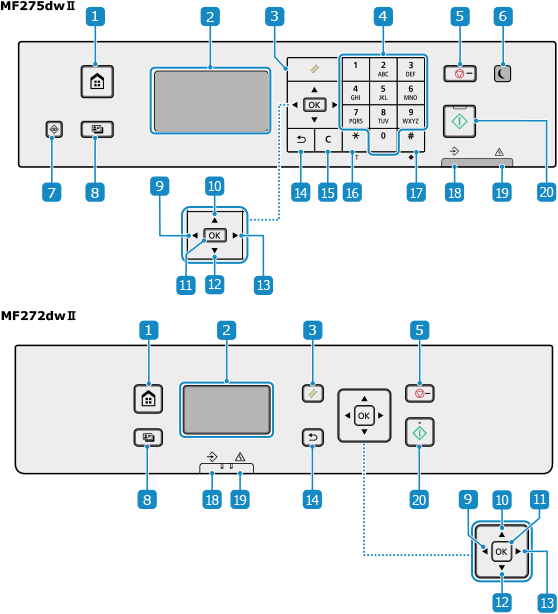
 Home key (
 )
)
Displays the [Home] screen. [Home] Screen
 Display
Displays the screens for operating the functions, usage, messages, and other information. Using the Control Panel
 Reset Key (
 )
)
Clears the settings and returns the printer to its previous status.
 Numeric keys (
 to
to  )(MF275dw II)
Enter numbers or characters. Entering Characters
 Stop key (
 )
)
Cancels an operation being executed.
 Energy Saver key (
 )(MF275dw II)
Puts the machine into sleep mode to reduce power consumption. In sleep mode, lights up in green. Reducing Power Consumption (Sleep Mode)
lights up in green. Reducing Power Consumption (Sleep Mode) Status Monitor key (
 )(MF275dw II)
Check the information of the machine, usage and logs, network settings, and error information. [Status Monitor] Screen
 ID Card Copy key (
 )
)
You can use this to copy the front and back sides of a driver's license or other ID card on the same sheet of paper at 100% magnification. Copying Both Sides of ID Cards onto One Sheet
 Left key (
 )
)
Returns to the previous screen. Press when entering text to move the cursor to the left.
 Up key (
 )
)
Selects the item above and increases the value on a slider.
 OK key (
 )
)
Confirms the settings and selected details.
 Down key (
 )
)
Selects the item below and decreases the value on a slider.
 Right key (
 )
)
Moves to the next screen. Press when entering text to move the cursor to the right.
 Back key (
 )
)
Returns you to the previous screen.
 Clear key (
 )(MF275dw II)
Deletes the entered numbers and text.
 Uppercase/lowercase/numeric/tone key (
 )(MF275dw II)
Changes the character type or sends a tone signal via the pulse dialing line.
 Symbol key (
 )(MF275dw II)
Enter symbols. Entering Characters
 Data indicator (
 )
)
Blinks when an operation is being performed, such as during communication or printing, and lights up when data is waiting to be processed.
 Error indicator (
 )
)
Blinks or lights up when a paper jam or other error occurs.
 Start key (
 )
)
Press this to start scanning or copying.