Installing the AMS Printer Driver Add-in
In the Access Management System, it is necessary to add the AMS Printer Driver Add-in to the printer driver installed in the computers to restrict printing from. The AMS Printer Driver Add-in can be installed with either of the following methods.
Installing individually using the installer
Installing to multiple computers in batches using the Printer Driver Management Plug-in
|
IMPORTANT
|
|
Confirm that the printer driver supports AMS before installing the AMS Printer Driver Add-in. The add-in will not be installed correctly unless the printer driver supports it. For more information, see "Client Computer (AMS Printer Driver Add-in)."
Before installing the AMS Printer Driver Add-in, it is necessary to confirm that the Access Management System setup is complete. For more information, see "Setting Up the Access Management System."
If you want to restrict the printing of jobs from printer drivers in which the AMS Printer Driver Add-in is not installed, do so when specifying the preferences of the devices. For more information, see "Prohibiting the Printing from Drivers without AMS Printer Driver Add-In".
When using the AMS Printer Driver Add-in in a shared printer environment, install the AMS Printer Driver Add-in to the printer drivers on the print server. (Install the AMS Printer Driver Add-in to the printer driver on the print server. After installing the AMS Printer Driver Add-in to a printer driver on the print server, it may take some time until the [AMS] page is displayed in the printer properties dialog box on a client computer. If the [AMS] page is still not displayed, add the printer icon to the client computer.)
If the date/time settings of all equipment that comprises the system (devices, client computers, server computers, etc.) do not match, printing may take longer, or you may be unable to print. For information on setting the date/time settings of the device, see the instruction manuals for the device.
|
|
NOTE
|
|
When installing to multiple computers, you can use the silent installation function. For more information, contact your local authorized Canon dealer.
If you install the AMS Printer Driver Add-in to a printer driver, the [AMS] page is added to all printer icons associated with that printer driver.
|
Preparing to Install the AMS Printer Driver Add-in
Before installing the AMS Printer Driver Add-in, update the printer driver to install it in.
|
IMPORTANT
|
|
If AMS Printer Driver Add-in V1.x is installed, uninstall it using the version 1.x uninstaller, and then update the printer driver. For more information, see "Uninstalling the AMS Printer Driver Add-in." If AMS Printer Driver Add-in V2.0 or later is installed, you can update the printer driver without uninstalling the add-in.
|
|
NOTE
|
|
If the printer driver is not installed with [Standard TCP/IP Port], it is recommended you update it with [Standard TCP/IP Port].
|
1.
Log on to the computer as a user with Windows administrator privileges.
2.
If you are using Windows 8/Windows Server 2012, move to the desktop.
3.
Close all running applications.
4.
Update the printer driver to install the AMS Printer Driver Add-in, and install the Canon Driver Information Assist Service.
The Canon Driver Information Assist Service can be installed at the same time as updating the printer driver. Follow the instructions in the update wizard to install the Canon Driver Information Assist Service.
|
IMPORTANT
|
|
Update the printer driver using the latest installer (Setup.exe). The latest installer can be downloaded from the Canon Web site.
|
|
NOTE
|
|
For information on updating the printer driver, see the instruction manual for the printer driver.
|
Installing Individually Using the Installer
This section describes the procedure for installing the AMS Printer Driver Add-in individually in the computers to restrict printing for.
1.
Log on to the computer as a user with Windows administrator privileges.
2.
If you are using Windows 8/Windows Server 2012, move to the desktop.
3.
Close all running applications.
4.
Double-click the Setup.exe file for the AMS Printer Driver Add-in.
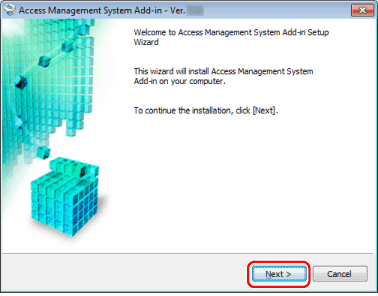
The AMS Printer Driver Add-in setup wizard starts.
5.
Click [Next].
6.
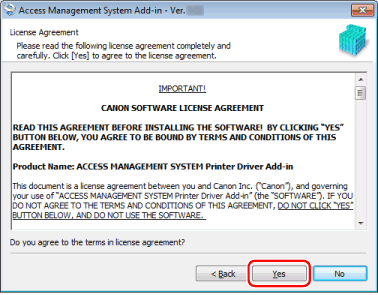
Confirm the displayed information → click [Yes].
7.
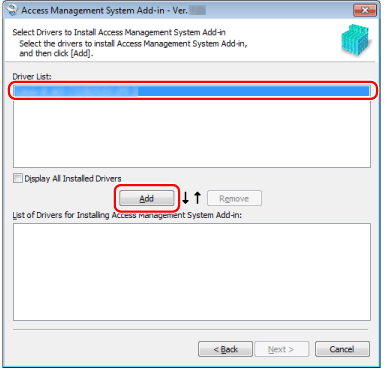
Select the driver to install the AMS Printer Driver Add-in to from the [Driver List] → click [Add].
When a desired printer driver is not displayed or a printer driver exists but does not have a printer icon (for the server of a terminal service, etc.), select [Display All Installed Drivers].
8.
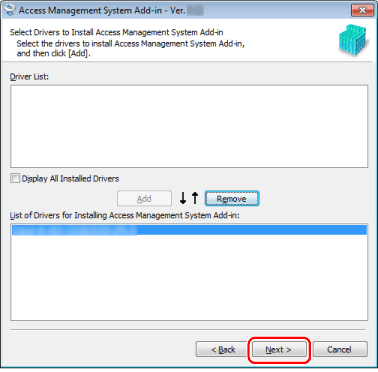
Click [Next].
9.
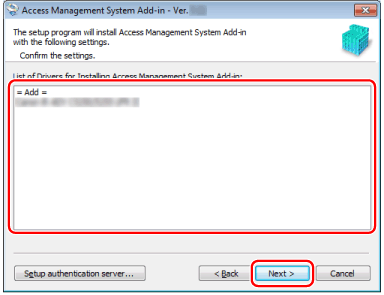
Confirm that the appropriate driver names are displayed in [List of Drivers for Installing Access Management System Add-in] → click [Next].
10.
Click [Yes] when the message confirming whether you want to retrieve the device (printer) information is displayed.
If you click [No], the device information is not retrieved. Enter the IP address or host name of the printer on the next screen.
11.
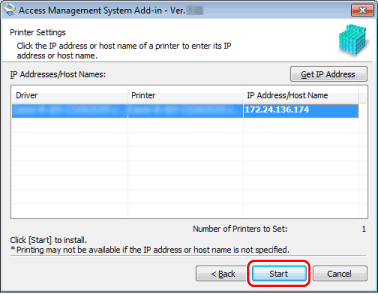
Click [Start].
If you clicked [No] in the previous page, click the [IP Address/Host Name] field for that driver → enter the IP address or host name of the device.
If [Enter IP Address/Host Name] is displayed in the [IP Address/Host Name] field, click [Get IP Address]. If the IP address cannot be retrieved, click the [IP Address/Host Name] field for that driver → enter the IP address or host name of the device.
|
NOTE
|
|
If multiple printers that use the same printer driver are connected to the network, all of those printers are displayed in [IP Addresses/Host Names].
|
12.
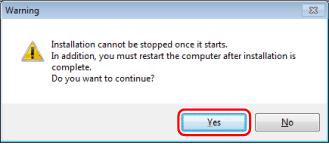
Click [Yes] when the message confirming whether you want to start installing is displayed.
The AMS Printer Driver Add-in is installed.
13.
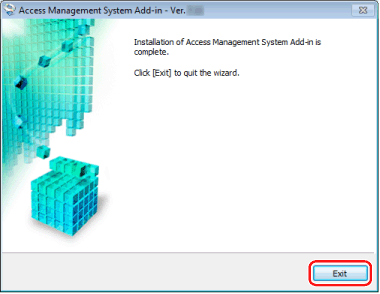
Click [Exit].
14.
Click [Yes] in the displayed dialog box.
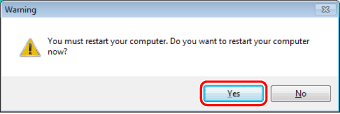
The computer will be restarted and the installation completes.
|
IMPORTANT
|
|
It is necessary to set user information to the AMS Printer Driver Add-in installed in each computer. For more information, see "Setting User Information to the AMS Printer Driver Add-in."
|
|
NOTE
|
|
If you want to restart the computer later, click [No].
|
You can use the Printer Driver Management Plug-in to install print restrictions to multiple computers in batches with the AMS Printer Driver Add-in.
The Printer Driver Management Plug-in is an optional plug-in for Enterprise Management Console, and is used for remotely installing printer drivers and add-ins to computers.
For information on adding the Printer Driver Management Plug-in to Enterprise Management Console, see the User's Guide for Printer Driver Management Plug-In. For more information on operating the Printer Driver Management Plug-in, see the Online Help for the Printer Driver Management Plug-in.
The flow of operations for installing the AMS Printer Driver Add-in using the Printer Driver Management Plug-in is indicated below.
1. Adding the AMS Printer Driver Add-in to the Driver Database
Use the Driver Set Uploader to add the AMS Printer Driver Add-in to the driver database.
2. Associating Devices and Drivers
Create associations for the devices to restrict printing for and the printer driver to install the AMS Printer Driver Add-in to.
3. Installing the AMS Printer Driver Add-in
Execute a task for adding an add-in to install the AMS Printer Driver Add-in.
|
IMPORTANT
|
|
It is necessary to set user information to the AMS Printer Driver Add-in installed in each computer. For more information, see "Setting User Information to the AMS Printer Driver Add-in."
|