Problems with Printing Results
Smudge marks appear on the bottom edge of printouts.

 Are you using appropriate paper?
Check usable paper, and replace with appropriate paper. Also, specify the paper size and type settings properly.
Do you print data without margins?
This symptom occurs if a margin is set to none in the printer driver. Make sure to have margins around the document to print.
[Finishing] tab [Advanced Settings] [Expand Print Region and Print] [Off]
[Finishing] tab
[Advanced Settings] [Expand Print Region and Print] [Off]Are smudge marks found in the margin on the bottom edge of printouts?
Change the setting for <Reduce Margin Stain>. Changing the setting of this item may solve the problem.

In the case of continuous printing with <Mode 1> or <Mode 2> specified, printing a larger number of pages than a certain specific number triggers automatic cleaning, resulting in a slower printing speed.
The printed image is displaced or skewed.
Are the paper guides misaligned?
Match the paper guides with the paper loaded in the paper source.
White streaks appear/printing density is uneven.

Are you using appropriate paper?
Check usable paper, and replace with appropriate paper.
Have you cleaned the fixing assembly?
Clean the fixing assembly.
Is the amount remaining in toner cartridge running low?
Check the toner cartridge status indication, and perform toner cartridge replacement as necessary.
Regardless of the toner cartridge status indication, one or more toner cartridges may have reached the end of their lifetime due to the machine's environmental conditions and the deteriorated materials in the cartridges. Replace the toner cartridge.
Is the drum cartridge near the end of its life?
Check the drum cartridge status indication, and perform drum cartridge replacement as necessary.
Regardless of the drum cartridge status indication, one or more drum cartridges may have reached the end of their lifetime due to the machine's environmental conditions and the deteriorated materials in the cartridges. Replace the drum cartridge.
Are you using the machine in an environment with high humidity?
Change the [Humid Environment Mode] setting. Setting it to [High Humidity] may improve this problem.
If you select [High Humidity] and use the machine in an environment with low humidity, printed images or text may be smudged.
Has color mismatch correction or hue correction been performed properly?
Change the setting of <Correct Color Shift>. Setting to <On> may solve the problem.
If you select <On>, the print speed may be slower.
If the effect of the color mismatches or color streaks (lines) is unacceptably strong, perform calibration.
Change the setting of <Correct Plain Paper Color 2>. Setting to <On> may solve the problem.
Change the setting of <Reduce Drum Streak>. Setting to <On> may solve the problem.
Change the setting of <White Streak Prevention Mode>. Setting to <On> may solve the problem.
If you select <On>, ghost images may appear.
Does this problem occur when you print in black and white?
Change the setting of <Correct Black & White Density>. Changing the setting of this item may solve the problem.
With <Mode 1> or <Mode 2> specified, the CMYK toners are consumed even in black and white printing depending on the paper type used. Further, the print speed may be slower.
With <Off> specified, black and white printing may result in uneven print density.
Does color mismatch occur when printing on heavy paper?
Change the setting for [Use Reduce Heavy 2 Color Shift]. When printing on some heavy paper, changing the setting of this item may solve the problem.
The degree of improvement may vary depending on paper to use for printing.
Does continuous printing result in uneven print density?
Change the setting of <Correct Void for Consecutive Printing>. Setting to <On> may solve the problem.
Do streaks (lines) appear after cleaning of the fixing assembly?
Change the setting of <Correct Black & White Streaks>. Setting to <On> may solve the problem.
If you select <On>, the print speed may be slower. Also, ghost images may appear.
Do horizontal streaks appear depending on the paper type or the settings of the machine?
Change the setting of <Reduce Low Speed Banding>. Setting to <On> may solve the problem.
Is [POP Printing Optimization] configured on the printer driver?
Change the setting of <POP Print Settings> to <Mode 2>.
If you select <Mode 2>, the print speed may be slower.
Perform calibration for POP printing.
Images are not printed on the intended side of the paper.
Is the orientation of the loaded paper correct?
Check the orientation and side of the paper that is facing up. Load the paper again if it is incorrectly orientated.
Images are not printed in the intended size.
Do the original size and size of the paper that is loaded match?
Replace the paper that is loaded with paper of the size you want to print on.
Match [Output Size] in the printer driver with the size of paper to print on.
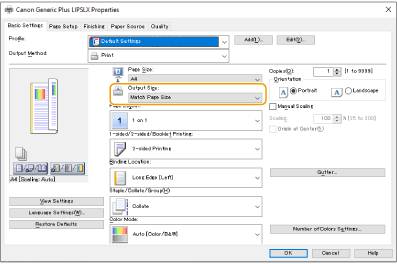
The orientation does not match on both sides of the paper when using two-sided printing.
Are the settings for two-sided printing correct?
Follow the procedure below to check the print settings.
1 | Select the orientation of the original on the print settings screen of the application. |
2 | On the [Basic Settings] screen of the driver, set [Orientation] to the same orientation you set in step 1. 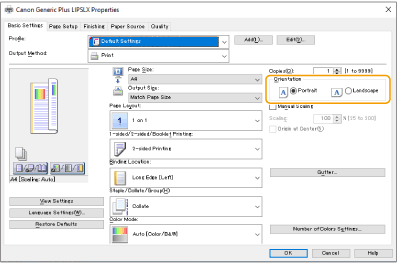 |
3 | While checking the print preview, set [Page Layout] [Page Order] [1-sided/2-sided/Booklet Printing] [Binding Location].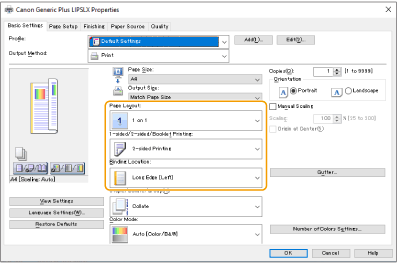 |
 |
[Page Order] is displayed when [Page Layout] is set to [2 on 1] or higher. |
Smudges appear on printouts.

Are you using appropriate paper?
Check usable paper, and replace with appropriate paper.
Do smudges appear on printouts when you use the machine in an environment with low humidity?
Change the [Humid Environment Mode] setting. Setting it to [Low Humidity 1] may improve this problem.
If you select [Low Humidity 1] and use the machine in an environment with high humidity, the print density may become lighter or uneven.
Toner smudges and splatters appear.

Are you using appropriate paper?
Check usable paper, and replace with appropriate paper.
Do smudges appear on printouts when you use the machine in an environment with low humidity?
Change the [Humid Environment Mode] setting. Setting it to [Low Humidity 2] may improve this problem.
Afterimages appear on the blank area.

Are you using appropriate paper?
Check usable paper, and replace with appropriate paper.
Is the amount remaining in toner cartridge running low?
Check the toner cartridge status indication, and perform toner cartridge replacement as necessary.
Regardless of the toner cartridge status indication, one or more toner cartridges may have reached the end of their lifetime due to the machine's environmental conditions and the deteriorated materials in the cartridges. Replace the toner cartridge.
Is the drum cartridge near the end of its life?
Check the drum cartridge status indication, and perform drum cartridge replacement as necessary.
Regardless of the drum cartridge status indication, one or more drum cartridges may have reached the end of their lifetime due to the machine's environmental conditions and the deteriorated materials in the cartridges. Replace the drum cartridge.
Do ghost images appear when you perform continuous printing?
Change the setting for <Reduce Ghosting 2>. The improvement effect is stronger with <Mode 2> than <Mode 1>. First try with <Mode 1>.
Selecting <Mode 1> or <Mode 2> may result in uneven print density.
Do ghost images on your printouts when you use the machine in an environment with low humidity?
Change the setting of <Special Fixing Mode 4>. Setting to <On> may solve the problem.
Do ghost images appear in the same page?
Change the setting of <Reduce Ghosting 3>. Setting to <On> may solve the problem.
Setting to <On> may result in uneven print.
Does printed paper appear dirty when two-sided printing is set?
Change the setting of [Reduce Ghosting]. Setting to [On] may solve the problem.
Printing is faint/streaked.

Is the amount remaining in toner cartridge running low?
Check the toner cartridge status indication, and perform toner cartridge replacement as necessary.
Regardless of the toner cartridge status indication, one or more toner cartridges may have reached the end of their lifetime due to the machine's environmental conditions and the deteriorated materials in the cartridges. Replace the toner cartridge.
Is the drum cartridge near the end of its life?
Check the drum cartridge status indication, and perform drum cartridge replacement as necessary.
Regardless of the drum cartridge status indication, one or more drum cartridges may have reached the end of their lifetime due to the machine's environmental conditions and the deteriorated materials in the cartridges. Replace the drum cartridge.
Are you using appropriate paper?
Check usable paper, and replace with appropriate paper. Also set the correct paper size and type.
Are you using paper with a large amount of paper dust?
Change the setting for [Reduce Image Defects Caused by Paper Dust]. Setting to [On] may solve the problem.
If you select <On>, the print speed may be slower.
Is [POP Printing Optimization] configured on the printer driver?
Change the setting of <POP Print Settings> to <Mode 2>.
If you select <Mode 2>, the print speed may be slower.
Perform calibration for POP printing.
Some parts are left white.

Are you using paper that has absorbed moisture?
Replace with appropriate paper.
Are you using appropriate paper?
Check usable paper, and replace with appropriate paper.
Is the amount remaining in toner cartridge running low?
Check the toner cartridge status indication, and perform toner cartridge replacement as necessary.
Regardless of the toner cartridge status indication, one or more toner cartridges may have reached the end of their lifetime due to the machine's environmental conditions and the deteriorated materials in the cartridges. Replace the toner cartridge.
Is the drum cartridge near the end of its life?
Check the drum cartridge status indication, and perform drum cartridge replacement as necessary.
Regardless of the drum cartridge status indication, one or more drum cartridges may have reached the end of their lifetime due to the machine's environmental conditions and the deteriorated materials in the cartridges. Replace the drum cartridge.
Are you using the machine in a low humidity environment?
Change the setting for [Humid Environment Mode]. Setting to [Low Humidity 2] may solve the problem.
When performing 2-sided printing, do white spots appear?
Change the setting of <Waterdrop Pattern Prevention Mode>. Changing the setting of this item may solve the problem. The improvement effect is stronger with <Mode 2> than with <Mode 1>.
In the case of 2-sided printing with this item set, it may take longer until printing starts.
Does uneven print density occur in a way that the print looks like a water drops pattern?
Setting <Reduce Waterdrop Pattern> to <On> may solve the problem.
If you select <On>, print quality may be affected.
If the problem persists with <Reduce Waterdrop Pattern> specified, change the setting of [Humid Environment Mode]. Setting to [Low Humidity 1] may solve the problem.
If you select [Low Humidity 1] and use the machine in an environment with high humidity, the print density may become lighter or uneven.
Black spots appear on printouts.

Have you cleaned the fixing assembly?
Clean the fixing assembly.
Back of paper is smudged.

Is the loaded paper smaller than the size specified in the print data?
Check whether the size specified in the print data matches that of the loaded paper.
Have you cleaned the fixing assembly?
Clean the fixing assembly.
Have you cleaned the secondary transfer roller?
Change the setting for <Auto Clean Secondary Transfer Roller>. Setting to <On> may solve the problem.
If you select <On>, the print speed may be slower.
Filled areas are not printed clearly.
Are you using plain paper with a glossy surface?
Change the setting for <Plain Paper Fill Area Image Adjust. Mode>. Setting to <On> may solve the problem.
Set <On> when using paper with a glossy surface. Printing problems may occur.
Are you using heavy paper with a glossy surface?
Change the setting for <Heavy Paper Fill Area Image Adjust. Mode>. Setting to <On> may solve the problem.
Set <On> when using heavy paper with a glossy surface. Printing problems may occur.
Streaks or spots like scattered water droplets appear.
Do the streaks or spots appear when the two-sided printing mode is set?
Change the <Waterdrop Pattern Prevention Mode> setting. Setting it to <On> may improve this problem.
If this setting is set to <On>, the printing speed may become slower.
Toner of the printed images peels off.
Are you using appropriate paper?
Check usable paper, and replace with appropriate paper.
Is the fixing temperature appropriate?
Change the setting for <Adjust Fixing Temperature>. Setting to <High 1> may solve the problem.
If setting <High 1> does not improve the problem, try setting <High 2>. However, this will reduce the print speed.
Paper creases.

Is paper loaded correctly?
Wrinkling may occur if the paper is not passing below the loading limit line or loading limit guide, or loaded at an angle.
Are you using paper that has absorbed moisture?
Replace with appropriate paper.
Are you using appropriate paper?
Check usable paper, and replace with appropriate paper.
Does this problem occur when printing on plain paper or thin paper?
On the printer driver, change the setting of [Wrinkle Correction]. Changing the setting of this item may solve the problem. Normally select [Mode 1].
[Finishing] tab [Advanced Settings] [Wrinkle Correction] select [Mode 1]
[Finishing] tab
[Advanced Settings] [Wrinkle Correction] select [Mode 1]Change the setting of [Correct Paper Wrinkle]. Setting to [On] may solve the problem.
Paper curls.

Are you using paper that has absorbed moisture?
Replace with appropriate paper.
If <Plain 2> was set as the paper type, change the setting to <Plain 1>.
Does this problem occur when printing on some types of paper such as plain paper or thin paper?
Set <Mode 1> to <On> in <Curl Prevention Mode>.
If you select <On>, the print quality may be reduced.
If setting <Mode 1> to <On> does not reduce curling, set <Mode 2> to <On>. If setting both <Mode 1> and <Mode 2> to <On> does not reduce curling, set <Mode 1> and <Mode 2> to <Off>, and set <Switch Paper Feed Method> to <Print Side Priority>.
Are you using appropriate paper?
Check usable paper, and replace with appropriate paper. Also set the correct paper size and type.
Load the paper again with the side to print on reversed.

This symptom may worsen in rare cases, depending on the paper you are using. In this case, return the paper to its original orientation.
Paper is not fed/multiple sheets of paper are fed together.

Is paper loaded correctly?
Fan the paper stack thoroughly so that paper is not stuck together.
Check whether paper is loaded correctly.
Check whether the number of sheets of paper loaded is appropriate and whether the appropriate paper is used.
Check whether mixed sizes and types of paper are loaded together.
There are cases where the paper does not load properly depending on its thickness. If this occurs, reverse the paper orientation, or flip the paper over.
Does this occur when feeding from the multi-purpose tray?
Change the setting for [Adjust Paper Conveyance in Multi-Purpose Tray]. Setting to [On] may solve the problem.
If you select [On], the print speed may be slower.
A portion of the page is not printed.

Do you print data without margins?
This symptom occurs if a margin is set to none in the printer driver. Make sure to have margins around the document to print.
[Finishing] tab [Advanced Settings] [Expand Print Region and Print] [Off]
[Finishing] tab
[Advanced Settings] [Expand Print Region and Print] [Off]Do the paper guides align with the edges of the paper?
If the paper guides are too loose or too tight, part of a document may not be printed.
Are you using custom size paper loaded in correct orientation?
Load the custom size paper in landscape orientation when you print without using the Canon Generic Plus UFR II printer driver.
Load the custom size paper in portrait orientation if the following conditions are met when you are using the Canon Generic Plus UFR II printer driver.
Paper Size in Select Feeder Menu | <Free Size> |
Loaded Paper | Long edge length is 215.9 mm or less. |
Printouts become lightly colored.
Is the amount remaining in toner cartridge running low?
Check the toner cartridge status indication, and perform toner cartridge replacement as necessary.
Regardless of the toner cartridge status indication, one or more toner cartridges may have reached the end of their lifetime due to the machine's environmental conditions and the deteriorated materials in the cartridges. Replace the toner cartridge.
Is the drum cartridge near the end of its life?
Check the drum cartridge status indication, and perform drum cartridge replacement as necessary.
Regardless of the drum cartridge status indication, one or more drum cartridges may have reached the end of their lifetime due to the machine's environmental conditions and the deteriorated materials in the cartridges. Replace the drum cartridge.
When the machine is used in an environment with high temperature or high humidity, do white areas become lightly colored?
Change the setting of <Correct Background Density>. Setting to <On> may solve the problem.
If you select <On>, print density may be lighter.
Are white areas lightly colored?
Change the setting of <Clean Charged Roller>. Setting to <On> may solve the problem.
If you select <On>, print density may be lighter.
Printed barcode cannot be read.
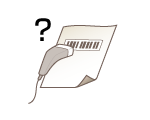
It is possible that a small barcode or a barcode consisting of thick lines cannot be read.
Enlarge the barcode.
If the direction of lines in the barcode is perpendicular to the paper output direction, turn the image 90 degrees to make the lines parallel to the paper output direction.
Printouts are skewed.

If the paper guides are too loose or too tight, the printouts are skewed.
Align the paper guides to the edges of the paper.
When loading paper in the optional Paper Feeder PF-G or Cassette Feeding Unit-AU, make sure that the lever is set in the proper position.