
Performing User Registration
The required preparations differ according to the function you want to use.
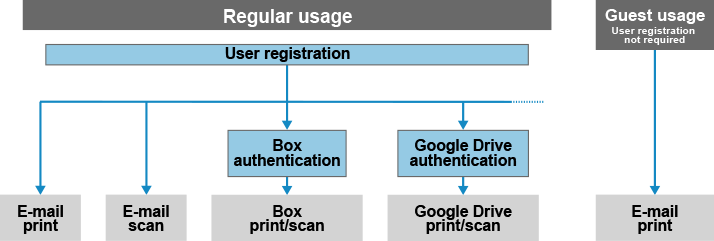
The Email print and Email scan functions can be used by performing user registration.
Printing from a cloud service and scanning to a cloud service can be performed by configuring authentication settings for the cloud service after performing user registration.
|
When using Cloud Connector with multiple multifunction printers, user registration is required for each printer. When performing user registration, register an e-mail address to Cloud Connector. Make sure to register an e-mail address that can send and receive attachments. With the Email print function, the file you want to print is sent from the registered e-mail address. With the Email scan function, the scanned data is sent to the registered e-mail address. |
Required Preparations |
The e-mail sent from Cloud Connector may be placed in a spam folder, depending on the settings of your e-mail client. Before performing registration, configure your e-mail client to allow e-mail from the "cloudconnector.online" domain to be received. |
 |
User registration is not required when using the Email print function only, but is convenient if the function will be used repeatedly. For information on using the Email print function without user registration, see the following. |
1
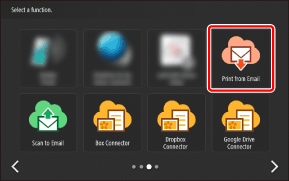
On the Home screen, press one of the buttons for the Cloud Connector applications.
2
Press [Register].
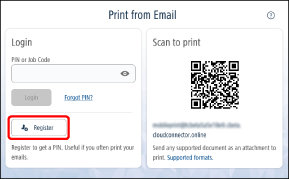
The design of the screen differs according to the application.
3
Enter the e-mail address, and press [Register].
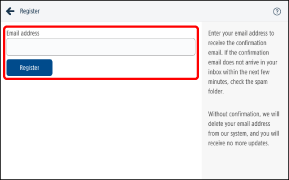
An e-mail confirming the registration is sent to the e-mail address you enter.
Perform step 4 within one hour.
|
If the e-mail address you enter is already registered, an error message is displayed. For more information, see the following. If the e-mail does not arrive, see the following. |
4
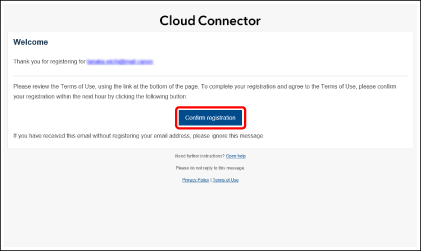
Open the e-mail and click [Confirm registration].
If you cannot click [Confirm registration], change the display format of the e-mail to HTML. For information on changing the display format, see the manual for your e-mail client.
5
Check the PIN code in the e-mail you receive.
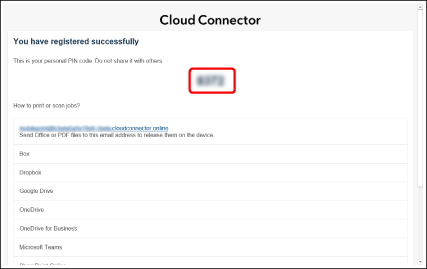
The subject of the e-mail is "Cloud Connector: Your new PIN code".
Make a note of the PIN code.
This PIN code is required for using all Cloud Connector apps.
|
The PIN code cannot be used with Cloud Connector on another multifunction printer. User registration must be performed on each multifunction printer to issue a PIN code. If you forget the PIN Code, you can issue another one. For more information, see the following. |
This concludes the procedure for user registration.
The Email print and Email scan functions can now be used. For information on using the functions, see the following.
To print from a cloud service or scan to a cloud service, authentication settings must be configured. For more information, see the following.