Loading Paper in the Paper Deck and Paper Drawer
Load paper you usually use into the paper deck or paper drawer, which can hold large amounts of paper.
IMPORTANT
Load Fixed Size Paper
Loading paper of a different size (other than the fixed size) may result in a malfunction.
Do Not Load Printed Paper
If you load printed paper in a paper drawer, a malfunction may occur. When you want to print on the back side of printed paper (manual 2-sided printing), be sure to load the paper in the multi-purpose tray. Loading Paper in the Multi-purpose Tray
Loading Paper in the Paper Deck
You can only load A4, B5 or letter size paper in the paper deck, which is fixed to one of these sizes. To change the size, contact your dealer or service representative.
When loading paper with a logo, pay attention to the orientation and which side is face up. Orientation for Loading Paper with a Logo
When loading paper with a logo, pay attention to the orientation and which side is face up. Orientation for Loading Paper with a Logo
1
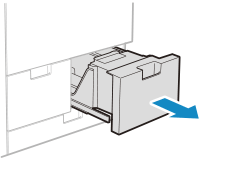
Pull the paper deck toward you until it stops.
2
Fan the paper and align the edges.
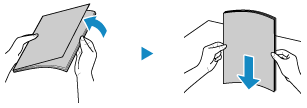
Fan the four edges of the paper in small batches, and align the edges by tapping the paper on a flat surface a few times.
3
Load the paper.
1
Match the size of the paper to be loaded with the paper size setting of the paper deck.
2
Load the paper with the print side face down.
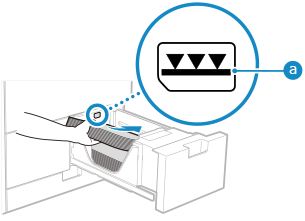
Load the paper with the edge of the paper against the right side of the paper deck.
Make sure the loaded paper does not exceed the load limit line ( ). If it exceeds the load limit line, there may be misfeeds or a paper jam.
). If it exceeds the load limit line, there may be misfeeds or a paper jam.4
Press the paper deck all the way in.
5
Set the paper type, as needed. Setting the Paper Size and Type for the Paper Deck and Paper Drawer
By default, the paper type is set to Plain 1 or Plain 2. When paper of a different type is loaded, change the paper type setting.
IMPORTANT
Using the Paper Deck Correctly
Do not place anything in the space other than the area where you load the paper. This can result in paper jams or malfunction.
Do not load anything other than paper in the area where you load the paper. This can result in a malfunction.
NOTE
If a problem occurs during printing, you may be able to solve it by turning the paper over and reloading it.
Loading Paper in the Paper Drawer
The setting method varies depending on the size of the paper to be loaded.
When Loading A3, A4, or Other Standard Size Paper or Envelopes
When Loading Custom Size Paper
* You can load tab paper in the paper drawer. Loading Tab Paper in the Paper Drawer
Loading Standard Size Paper
You can load paper correctly by aligning the paper guides on the paper drawer with the markings.
When using envelopes or paper with a logo, be careful of the orientation of the loaded paper and which side is face up.
When using envelopes or paper with a logo, be careful of the orientation of the loaded paper and which side is face up.
1
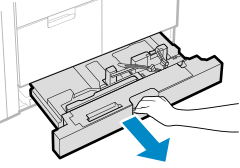
Pull the paper drawer toward you until it stops.
2
Align the paper guides with the size of the paper to be loaded.
1
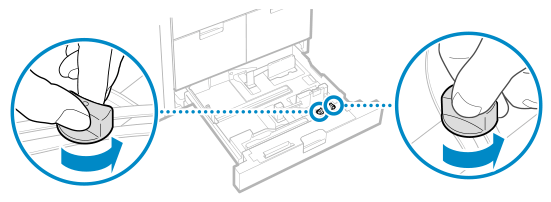
Loosen the fixing screw.
2
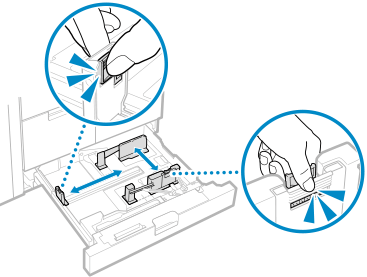
While holding the lock release lever, move the paper guide.
3
Align the projections on the paper guides with the size indicator of the paper to be loaded.
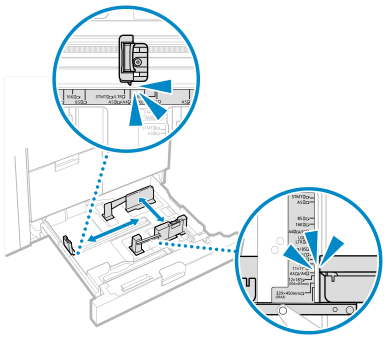
Align the paper guides to the position where you hear a click.
If the paper guides are not aligned correctly, the loaded paper size will not be displayed correctly on the control panel screen. In addition, it may result in paper jams, smudged printouts, and dirty areas inside the machine.
If the paper guides are not aligned correctly, the loaded paper size will not be displayed correctly on the control panel screen. In addition, it may result in paper jams, smudged printouts, and dirty areas inside the machine.
The paper size indicator may indicate a paper size that cannot be loaded in the machine. For the size of paper that can be loaded in the machine, see the following:
If there is not a paper size indicator for the paper to be loaded, load it using the custom size method. Loading Non-standard Size Paper
4
Tighten the fixing screw.
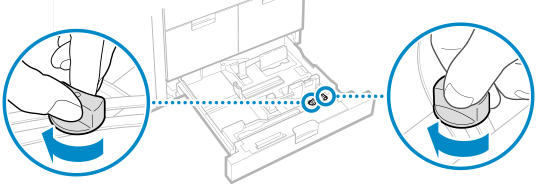
Do not tighten the fixing screw while holding down the paper guides. This can result in a paper jam.
3
Fan the paper and align the edges.
Fan the four edges of the paper thoroughly in both directions.
After you fan the paper, align the edges on a flat surface.
4
Load the paper with the print side face down.
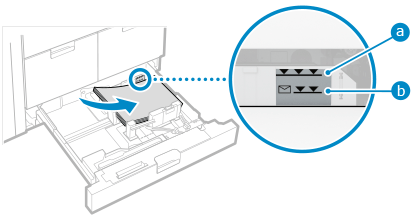
Load the paper with the edge of the paper against the right side of the paper drawer.
Make sure the loaded paper does not exceed the load limit line ( for other than envelopes and  for envelopes). If it exceeds the load limit line, there may be misfeeds or a paper jam.
for other than envelopes and for envelopes). If it exceeds the load limit line, there may be misfeeds or a paper jam.5
Push the paper drawer gently into the machine.
6
Set the paper size and type, as needed. Setting the Paper Size and Type for the Paper Deck and Paper Drawer
The paper size is detected automatically. Paper Sizes That Can Be Detected Automatically
* If the detected paper size does not match the loaded paper, the paper may not be loaded correctly. Reload the paper.
* If paper of a size that is not detected automatically is loaded, or a different size is detected even after reloading the paper, change the paper size setting.
By default, the paper type is set to Plain 1 or Plain 2. When paper of a different type is loaded, change the paper type setting.
NOTE
If a paper size label is affixed to the paper drawer, replace the paper size label after changing the paper size. Paper Deck and Drawer
Loading Non-standard Size Paper
You can load paper correctly by aligning the paper guides on the paper drawer with the paper.
When using paper with a logo, be careful of the orientation of the loaded paper and which side is face up. Orientation for Loading Paper with a Logo
When using paper with a logo, be careful of the orientation of the loaded paper and which side is face up. Orientation for Loading Paper with a Logo
1
Pull the paper drawer toward you until it stops.
2
Loosen the fixing screw.
3
Slide the paper guides to the outside.
While holding the lock release lever, move the paper guides.
4
Fan the paper and align the edges.
Fan the four edges of the paper thoroughly in both directions.
After you fan the paper, align the edges on a flat surface.
5
Load the paper with the print side face down.
Load the paper with the edge of the paper against the right side of the paper drawer.
Make sure the loaded paper does not exceed the load limit line ( for other than envelopes and for envelopes). If it exceeds the load limit line, there may be misfeeds or a paper jam.
for other than envelopes and for envelopes). If it exceeds the load limit line, there may be misfeeds or a paper jam.6
Align the paper guides with the width and length of the paper.
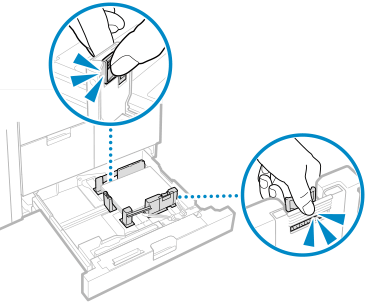
While holding the lock release lever, align the paper guides with the width and length of the paper.
Paper guides that are aligned and are too loose or too tight can cause misfeeds or a paper jam.
7
Tighten the fixing screw.
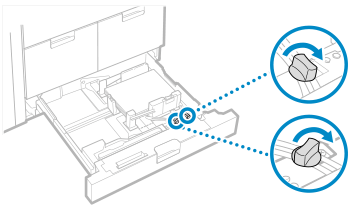
Do not tighten the fixing screw while holding down the paper guides. This can result in a paper jam.
8
Push the paper drawer gently into the machine.
9
Set the paper size and type. Setting the Paper Size and Type for the Paper Deck and Paper Drawer
Set the size (length of side) of the loaded paper.
By default, the paper type is set to Plain 1 or Plain 2. When paper of a different type is loaded, change the paper type setting.