A Message Appears
If a message appears on the control panel, select the message from the list below, and check how to troubleshoot the problem.
23 MEMORY FULL
There is insufficient memory to register overlay forms and external characters.
Press [Skip Error] to Continue Printing.
If you skip the error, the data that could not be registered due to insufficient memory is not printed.
Cancel Printing, Initialize the Printer Function, and Try Printing Again.
Initializing the printer function increases the available memory. However, this deletes all print data in the memory of the machine. [Reset Printer]
27 JOB REJECT
The specified emulation does not exist.
Press [Skip Error] to Continue Printing.
If you skip the error, the data that caused the error is not printed.
Is the Specified Emulation Supported by the Machine?
If supported, specify the operation mode, and try printing again. [Personality]
33 WORK FULL
Printing could not be performed because the dedicated work memory is insufficient.
Press [Skip Error] to Continue Printing.
If you skip the error, the data with the error displayed is not printed correctly.
* Registered data such as an overlay or macro may be deleted.
Cancel Printing, Initialize the Machine, and Try Printing Again.
Initializing the machine increases the available memory. However, this deletes all print data in the memory of the machine. [Reset Printer]
52 IMAGEMODE REJECT
Image data that cannot be processed was received while printing an image.
Press [Skip Error] to Continue Printing.
If you skip the error, the data that caused the error is not printed.
Does the Printer Driver Support the Image Data Format?
Try printing again using a printer driver that supports the image data format.
The Active Directory site information is invalid. Contact the system manager.
The Active Directory site information is not set correctly.
Set the Active Directory Site Information Again.
In Remote UI, check that [Timing of Site Information Retrieval] and [Site Access Range] are set correctly. Registering Authentication Server Information
Could not verify CRL.
The CA certificate of the certificate authority that issued the certification revocation list (CRL) could not be verified.
Register the CA Certificate of the Certificate Authority That Issued the Certification Revocation List (CRL).
D0-nn error (where "nn" is a two-digit alphanumeric character)
The printer function of the machine is not working properly due to an error.
Restart the Machine.
If the message still appears after restarting the machine, make a note of the message and contact your dealer or service representative.
Could not send the new PIN via e-mail. Check the settings.
The e-mail to reset the PIN or the attached file showing the new pattern could not be sent.
Is the E-mail Address of the Login User Set Correctly?
Check the e-mail address of the login user. Registering User Information
Are the Network and E-mail Sending Settings Set Correctly?
FF FONT FULL
Could not register the font information to the font information store area (font table) because there were too many fonts to register.
Press [Skip Error] to Continue Printing.
If you skip the error, the data that could not be registered is not printed correctly.
Cancel Printing, Initialize the Machine, and Try Printing Again.
Initializing the machine increases the available memory. However, this deletes all print data in the memory of the machine. [Reset Printer]
FM DL SIZE ERROR n (where "n" is a one-digit alphanumeric character)
The printer function of the machine is not working properly due to an error.
Restart the Machine.
If the message still appears after restarting the machine, make a note of the message and contact your dealer or service representative.
FM DL SCALE ERROR n (where "n" is a one-digit alphanumeric character)
The printer function of the machine is not working properly due to an error.
Restart the Machine.
If the message still appears after restarting the machine, make a note of the message and contact your dealer or service representative.
FM DL FONT MEMORY FULL
The printer function of the machine is not working properly due to an error.
Restart the Machine.
If the message still appears after restarting the machine, make a note of the message and contact your dealer or service representative.
FM FILE ACCESS ERROR
The printer function of the machine is not working properly due to an error.
Restart the Machine.
If the message still appears after restarting the machine, make a note of the message and contact your dealer or service representative.
FM SC WORK MEM. ERROR n (where "n" is a one-digit alphanumeric character)
The printer function of the machine is not working properly due to an error.
Restart the Machine.
If the message still appears after restarting the machine, make a note of the message and contact your dealer or service representative.
FM ALIGNMENT ERROR
The printer function of the machine is not working properly due to an error.
Restart the Machine.
If the message still appears after restarting the machine, make a note of the message and contact your dealer or service representative.
FM FONT PARSE ERROR
The printer function of the machine is not working properly due to an error.
Restart the Machine.
If the message still appears after restarting the machine, make a note of the message and contact your dealer or service representative.
FM FONT MEMORY FULL
The printer function of the machine is not working properly due to an error.
Restart the Machine.
If the message still appears after restarting the machine, make a note of the message and contact your dealer or service representative.
FM WORK MEMORY ERROR
The printer function of the machine is not working properly due to an error.
Restart the Machine.
If the message still appears after restarting the machine, make a note of the message and contact your dealer or service representative.
IEEE 802.1X error. Set the correct authentication information.
The authentication method or authentication information of IEEE 802.1X is not set correctly.
Set the Authentication Method and Authentication Information (Key and Certificate, User Name, Password, and CA Certificate) Again.
IEEE 802.1X error. No reply from the destination.
An error occurred during communication with the authenticator (LAN switch).
Check the Connection Status of the Authenticator (LAN Switch).
Check the Ethernet cable and switch status.
Check the Authentication Server Settings.
IEEE 802.1X error. Cannot analyze the certificate.
Analysis of the server certificate sent from the authentication server failed.
Check the Certificate of the Authentication Server, and Change the Setting, as Needed.
IEEE 802.1X error. The certificate is incorrect.
A CA certificate that supports the certificate of the authentication server is not registered to the machine.
Check the Certificate Information of the Authentication Server, and Register a Supported CA Certificate.
IEEE 802.1X error. The certificate has expired.
The server certificate sent from the authentication server has expired.
Check the Period of Validity of the Authentication Server Certificate.
IEEE 802.1X error. Change the authentication password.
IEEE 802.1X error. Check the authentication settings.
The authentication method set on the machine does not match that set on the authentication server.
Check the Authentication Method Set on the Authentication Server, and Set It Again.
Set the IP address.
The IP address of the machine is not set.
Set the IP Address Again, and Restart the Machine.
Could not retrieve the information from Microsoft Entra ID. The setting information for Microsoft Entra ID is incorrect. Contact the system manager.
The Microsoft Entra ID server information is not set correctly.
Check the Microsoft Entra ID Server Information and Change the Settings, As Needed.
Could not retrieve the information from Microsoft Entra ID. There is not enough device information for access. Contact the system manager.
The Microsoft Entra ID server information is not set correctly.
Check the Microsoft Entra ID Server Information and Change the Settings, As Needed.
Could not retrieve the information from Microsoft Entra ID. There is not enough user information for access. Contact the system manager.
The Microsoft Entra ID server information is not set correctly.
Check the Microsoft Entra ID Server Information and Change the Settings, As Needed.
Could not log in because a Microsoft Entra ID error occurred. Contact the system manager.
The machine is not working properly due to an error on the Microsoft Entra ID server.
Restart the Machine.
If the message still appears after restarting the machine, make a note of the message and contact your dealer or service representative.
A Microsoft Entra ID error occurred. Contact the system manager.
The machine is not working properly due to an error on the Microsoft Entra ID server.
Restart the Machine.
If the message still appears after restarting the machine, make a note of the message and contact your dealer or service representative.
Cannot connect to Microsoft Entra ID. The verification of the server certificate retrieved from Microsoft Entra ID failed. Contact the system manager.
The Microsoft Entra ID server information is not set correctly.
Check the Microsoft Entra ID Server Information and Change the Settings, As Needed.
Cannot register PDF with Format to PDF/A as default. All other settings have been registered.
You tried to register the default settings for each function with the PDF format set to [Format to PDF/A]. You cannot register [Format to PDF/A] to the default settings.
* You can register the settings as the default settings of the machine but not for each function. [Format PDF to PDF/A]
Check the server name in the SMB server settings.
A computer or another machine with the same name as the computer whose name is used to identify the machine on the network exists in the WINS database or the workgroup to which the machine belongs.
Check to See if the Machine Is Registered with the Same Computer Name as the Computer or Another Machine.
TCP/IP Error
The IP address is not set correctly or cannot be acquired automatically.
The IP Address May Not Be Able to Be Acquired Automatically Using DHCP and Auto IP.
Even though the IPv4 address is configured to be acquired automatically, if the IP address is displayed as "0.0.0.0," the address cannot be acquired automatically. Check the Ethernet cable connection and DHCP server settings.
When Using a Sub Line, Correctly Set the IPv4 Address of the Sub Line.
When Setting the IPv4 Address Manually, Correctly Set the IPv4 Address.
When Using a Stateless Address, Check That Each Address Has Been Acquired.
If an address cannot be acquired, check the settings of the router and DHCPv6 server.
* It may take a few minutes until the stateless address is set.
Is the Address of the DNS Server Set Correctly?
Check that the address of the DNS server is set correctly in IPv4 and IPv6. Configuring DNS
Out of resources. Wait a moment, then try again.
There were insufficient TCP/IP resources during or after continuous sending of the machine via FTP or Windows (SMB).
Wait a moment, and try operating again.
Wait a moment, and try operating again.
Check the TCP/IP.
The TCP or IP of the machine is not operating.
Check the IPv4 Address, DHCP, and Auto IP Settings.
When Using a Sub Line, Also Check the IPv4 Address and DHCP Settings of the Sub Line.
Check the TCP/IP. (Main Line)
The IPv4 address of the main line is set to "0.0.0.0".
Set a Correct IPv4 Address.
Check the TCP/IP. (Sub Line)
The IPv4 address of the sub line is set to "0.0.0.0".
Set a Correct IPv4 Address.
TLS Error
The WebDAV server or proxy server does not support TLS encrypted communication.
Check the WebDAV Server Settings.
When using TLS encrypted communication, configure TLS encrypted communication on the WebDAV server.
When Using a Proxy Server, Check the Proxy Server Settings.
When using TLS encrypted communication, configure TLS encrypted communication on the proxy server.
Cannot delete the default key because it is in use by TLS or other settings. Check the settings.
The key you are trying to delete is being used for encrypted TLS communication.
Check the Functions Using TLS Encrypted Communication.
If a function is using the key and certificate you tried to delete, disable the TLS encrypted communication setting. Using TLS
Universal Print: A server communication error occurred.
The network connection or server may have a problem.
Check the Network Connection Status and Settings.
If the machine is not connected to a network, reconfigure the network settings.
Check the network key (password) of the wireless LAN router, and configure the settings correctly on the machine.
Is There an Error on the Server?
Check that the server is operating properly.
Is a Firewall Blocking Communication with the Server?
Disable firewall blocking.
Universal Print: Could not authenticate with server.
An error occurred at server authentication.
Restart the Machine.
If the message still appears after restarting the machine, make a note of the message and contact your dealer or service representative.
Universal Print: The certificate has expired.
The certificate has expired.
Delete the machine from Microsoft Entra ID and the computer, re-register the machine, and update the certificate.
Delete the machine from Microsoft Entra ID and the computer, re-register the machine, and update the certificate.
Universal Print: An internal error occurred.
The machine is not working properly due to an error.
Restart the Machine.
If the message still appears after restarting the machine, make a note of the message and contact your dealer or service representative.
Universal Print: The printer is not registered.
Could not communicate with the machine because it was deleted from Microsoft Entra ID.
Re-register the machine to Microsoft Entra ID.
Re-register the machine to Microsoft Entra ID.
Check the wired LAN adapter connected to the USB port.
Multiple USB-LAN adapters are connected, or the USB-LAN adapter is not connected or recognized.
Check the Connection of the USB-LAN Adapter.
If You Reconnected the USB-LAN Adapter, Restart the Machine.
The specified X and Y values are settings that cannot be combined. Enter settings again. For details, refer to the manual.
An unsupported combination of numbers for X and Y is specified.
Check the X and Y values and enter settings again.
Check the X and Y values and enter settings again.
XPS Print Range Error
There are no pages that can be processed in the specified print range.
Specify the page range correctly, and try printing again.
Specify the page range correctly, and try printing again.
XPS Image Data Error
Failed to extend the image data.
Replace the image data in the XPS file, and try printing again.
Replace the image data in the XPS file, and try printing again.
XPS Spool Memory Full
There is insufficient memory to process the XPS data.
Restart the machine, and try printing again. If you still cannot print, divide the pages into multiple files, and print them separately.
Restart the machine, and try printing again. If you still cannot print, divide the pages into multiple files, and print them separately.
XPS Data Error
An invalid command is specified due to corrupt data or another factor, and processing cannot continue.
Try printing the XPS data in a format supported by the machine.
Try printing the XPS data in a format supported by the machine.
XPS Unsupport Image Err
Data contains an unsupported data format.
Convert the data to TIFF or JPEG format, and try printing again.
Convert the data to TIFF or JPEG format, and try printing again.
XPS Font Error
Failed to analyze the font data.
Replace the font data in the XPS file, and try printing again.
Replace the font data in the XPS file, and try printing again.
XPS Page Data Error
Cannot generate pages because the description is incorrect.
Try printing the XPS data in a format supported by the machine.
Try printing the XPS data in a format supported by the machine.
XPS Memory Full
There is insufficient memory to process the XPS data.
Press [Skip Error] to Continue Printing.
If you skip the error, the page that caused the error may not printed correctly.
You do not have privileges to access the XXX page.
An unauthorized user tried to log in.
Log in as an authorized user.
Log in as an authorized user.
The account has expired. Contact the system manager.
The certificate or account may have expired.
Check the Period of Validity of the Certificate Registered to the Machine.
If the certificate has expired, register a new certificate. Registering a Key and Certificate or CA Certificate Obtained from an Issuing Authority
Check the Period of Validity of the Account.
If the account has expired, set the period of validity of the user account again. Registering User Information to a Local Device
Access point connection error. Check Wireless LAN Information.
The access point could not be found.
Check the Wireless LAN Settings.
AP Mode: Ended due to an error.
There has been no data transfer to or from the connected mobile device for more than three minutes.
Reconnect the Mobile Device.
AP Mode: Ended because no other device could be found.
No connectable mobile device could be found.
Enable Wi-Fi on the Mobile Device, and Try Connecting Again.
Enable Wi-Fi on the mobile device if disabled.
Move the mobile device closer to the machine, and try connecting again. Connecting a Mobile Device Directly to the Machine (Direct Connection)
If you cannot connect properly to the machine, contact your dealer or service representative.
* Depending on the mobile device, it may not operate properly.
AP Mode: Max no. of devices that can connect has been reached.
Cannot connect because the maximum number of mobile devices that can be connected at the same time has been reached.
Disconnect an Unnecessary Mobile Device.
After disconnecting another mobile device, try connecting again. Connecting a Mobile Device Directly to the Machine (Direct Connection)
AP Mode: Connected to other devices.
Cannot connect because the machine is connected to another mobile device.
Reconnect after the other mobile device is disconnected. Connecting a Mobile Device Directly to the Machine (Direct Connection)
Reconnect after the other mobile device is disconnected. Connecting a Mobile Device Directly to the Machine (Direct Connection)
Cannot start this application because system resources (memory, threads, sockets, file descriptors, disk space, or screen size) required to start the application may not be available. <Resources>
Cannot use the application because required system resources, such as memory or disk capacity, may not be available.
Closing other applications may allow you to use the desired application.
Closing other applications may allow you to use the desired application.
Cannot download application logs because application logs do not exist.
The application log does not exist.
Cannot operate the log because it does not exist. Press [Back] to return to the previous screen.
Cannot operate the log because it does not exist. Press [Back] to return to the previous screen.
The contents of the file for the application to install are incorrect or information is missing. Check the file.
The application cannot be installed because the contents of the specified file are incorrect or information is missing.
If the file contents are incorrect, the application cannot be installed. If you still have problems after checking the file contents, contact the application developer or support department for the application.
If the file contents are incorrect, the application cannot be installed. If you still have problems after checking the file contents, contact the application developer or support department for the application.
The contents of the file for the license to install are incorrect or information is missing. Check the file.
The license file cannot be installed because the contents of the specified file are incorrect or information is missing.
If the file contents are incorrect, the license file cannot be installed. If you still have problems after checking the file contents, contact the application developer or support department for the application.
If the file contents are incorrect, the license file cannot be installed. If you still have problems after checking the file contents, contact the application developer or support department for the application.
Risk of security issues during internet connection has increased.
Unauthorized access from Remote UI is possible.
Use of Two-Factor Authentication for Remote UI Is Recommended.
Log in to Remote UI as an administrator  click [Settings/Registration] [User Management] [Authentication Management] [Basic Settings] [Edit...] select [All Users] or [Administrators Only] for [Always Require Two-Factor Authentication] in [Remote UI Authentication] click [Settings/Registration] [User Management] [Authentication Management] [Basic Settings] [Edit...] select [All Users] or [Administrators Only] for [Always Require Two-Factor Authentication] in [Remote UI Authentication] |
* If you do not intend to use two-factor authentication and you want to prevent this message from appearing, disable the notification for when an Internet security issue is detected.
Could not delete application logs because an error occurred.
The log could not be deleted because an unknown error occurred.
Press [Back] to return to the previous screen.
Press [Back] to return to the previous screen.
Could not download application logs because an error occurred.
The log could not be downloaded because an unknown error occurred.
Press [Back] to return to the previous screen.
Press [Back] to return to the previous screen.
Could not delete authentication information because an error occurred.
The authentication information could not be deleted because an unknown error occurred.
Contact your dealer or service representative.
Contact your dealer or service representative.
Could not set authentication information because an error occurred.
The authentication information could not be set because an unknown error occurred.
Contact your dealer or service representative.
Contact your dealer or service representative.
An error occurred. Contact the system manager.
The selected user has already been deleted, or an unexpected error has occurred.
Log in again, or log in with Administrator privileges and edit the user information.
If you cannot log in, contact the administrator.
Log in again, or log in with Administrator privileges and edit the user information.
If you cannot log in, contact the administrator.
No response.
Sending could not be performed because a server error or a TCP/IP error occurred.
Check the Network Connection Status and Settings.
If the machine is not connected to a network, reconfigure the network settings.
Is There an Error on the Server?
Check that the server is operating properly.
Reconsider your usage environment for recmnd. security settings.
The usage environment was checked in the Recommended Security Settings for Usage Environment, or the recommendation result changed due to a change in the connection environment.
It Is Recommended That You Check the Recommended Usage Environment and Change to That Security Setting, As Needed.
* If you do not intend to change the security settings and you want to prevent this message from appearing, disable the notification for when the recommended usage environment is updated.
Waste toner container is nearly full. Replacement not yet needed.
The waste toner container is nearly full.
Prepare a New Waste Toner Container, and Replace the Old One, as Needed.
Prepare a new waste toner container for replacement at any time. When replacing the waste toner container at this time, press the icon displayed at the bottom right of the screen, and follow the video for how to replace it. Replacing the Waste Toner Container
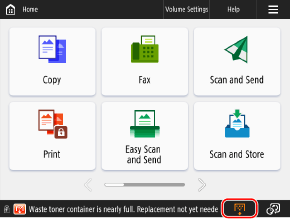
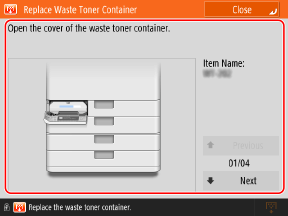
Replace the waste toner container.
Printing could not be performed because the waste toner container is full.
Follow the instructions on the screen to replace the waste toner container. Replacing the Waste Toner Container
Follow the instructions on the screen to replace the waste toner container. Replacing the Waste Toner Container
Cannot recall the button settings for some reason.
A Personal or Shared button with a function not supported by the machine was operated.
Register the Personal or Shared Button to the Machine Again.
If you cannot use a Personal or Shared button imported from another Canon multifunction machine, register the button to this machine again. Adding Buttons to the [Home] Screen (Personal and Shared Buttons)
Cannot recall the button settings because there is no response from the function for the button.
The operation could not be performed by pressing a button because the function to use is stopped.
Enable the stopped function, and press the button again.
Enable the stopped function, and press the button again.
This function is currently unavailable because an error occurred in the optional storage.
The Optional Data Storage Kit could not be detected correctly.
Check whether the Optional Data Storage Kit is displayed on the [Check Device Configuration] screen.
If it is not displayed, contact your dealer or service representative. Checking the Options Attached to the Machine
Synchronize Custom Settings: Some settings are restricted.
The server machine was turned OFF or is not working properly during synchronization of personalized data.
* A synchronization data error may have prevented the settings from being executed correctly during message display.
Is the Server Machine Started?
Start the server machine if it has not been started.
Is the Server Machine Ready for Connection?
If the Ethernet cable is connected properly, check the network connection status and settings of the server machine.
Synchronize Custom Settings: An error occurred.
An error occurred in the synchronization start process.
Check the Settings and Synchronization Status of the Client Machine.
Check that the address of the server machine to be connected to is correct.
Check that synchronization is started, and start it if it is stopped. Starting and Stopping Synchronization (Client Machine)
Restart the Machine.
If the problem persists even after restarting, send a ping command to the IP address to be set as the connection destination to see if there is an error.
Synchronize Custom Settings: Enabling synchronization...
The process for starting synchronization of the custom settings is being executed.
Wait a moment until the process is complete.
Wait a moment until the process is complete.
Synchronize Custom Settings: Log in again for synchronization.
Synchronization data is inconsistent between the server and client machines used to synchronize the custom settings.
Log out and log in again.
Log out and log in again.
Synchronize Custom Settings: Cannot find the server.
The server machine used to synchronize the custom settings could not be found with automatic discovery.
Is the Server Machine Started?
Start the server machine if it has not been started.
Is the Network Cable Disconnected from the Server Machine?
If the network cable does not have a problem, check the network settings.
Check the Settings and Synchronization Status of the Client Machine.
Check whether the server machine meets the conditions for automatic discovery. If automatic discovery cannot be used, set the address of the server machine to be connected to and search depth (router). Starting and Stopping Synchronization (Client Machine)
Check that synchronization is started, and start it if it is stopped. Starting and Stopping Synchronization (Client Machine)
Restart the Machine.
Synchronize Custom Settings: Server authentication error.
Cannot perform authentication on the server machine.
Did You Set the Correct Authentication User Account on the Client Machine?
Set a user with Administrator privileges on the server machine. Starting Synchronization on a Client Machine
Did Synchronization of the Custom Settings Stop?
Restart the Machine.
Synchronize Custom Settings: Cannot identify the server.
Multiple server machines used to synchronize the custom settings were found with automatic discovery.
To Enable Identification of the Server Machine, Set the Information of the Server Machine to Be Connected to on the Client Machine or Stop Any Unnecessary Server Machines.
On the client machine, set the address of the server machine to be connected to and search depth (router). Starting and Stopping Synchronization (Client Machine)
Stop Unnecessary Server Machines.
Make sure that only one server machine is running on the same network.
Check the covers.
The cover of the optional equipment is open.
Close the cover of the optional equipment.
Close the cover of the optional equipment.
Color printing is currently unavailable.
Color printing is restricted and cannot be used.
You can use black and white printing, so change the copy or print settings, as needed.
You can use black and white printing, so change the copy or print settings, as needed.
An error occurred when auto exporting the audit log.
Could not export the audit log. An error occurred on the server, the machine is unable to connect to the server, or the auto export settings are not correct.
Is There an Error on the Server?
Check that the server is operating properly.
Check the Network Connection Status and Settings.
If the machine is not connected to a network, reconfigure the network settings.
Is Auto Export Set Correctly?
Failed to generate Device Signature Key. Set the e-mail address in Communication Settings.
The e-mail address of the machine was not set when using a device signature.
Set the E-mail Address of the Machine Before Generating a Device Signature Key.
The function may be stopped. Buttons could not be imported.
The imported buttons included buttons with unsupported functions.
Check the machine to make sure all necessary buttons have been imported.
Check the machine to make sure all necessary buttons have been imported.
Routing registration failed. Check Static Routing Settings.
The static routing settings contain an entry that failed to be registered to the routing table.
Check That the Static Routing IP Address and Gateway Address Are Set Correctly.
Remove the original from the platen glass.
An original was left on the platen glass.
Remove the original from the platen glass, and place a new original on the platen glass.
Remove the original from the platen glass, and place a new original on the platen glass.
The original scanning area (feeder) is dirty.
The document feed scanning area is dirty with dust or other debris.
Clean the Document Feed Scanning Area.
Original scanning area (thin glass strip) is dirty.
The thin glass strip of the document feed scanning area is dirty with dust or other debris.
Clean the Document Feed Scanning Area.
Return the originals to their correct order, then press the [Start] key.
Scanning was canceled because the feeder encountered an unknown problem.
Reset All Originals, and Press [ Start].
Start].Return the originals to their correct order, then press the [Start] key. (The data size of the scanned original exceeds the limit. Settings will be automatically corrected and the originals will be scanned again.)
Scanning was canceled because the data size of the scanned original exceeds the limit of the machine.
Reset All Originals, and Press [ Start].
Start].* If the message continues to appear, you may be able to perform scanning by adjusting the sharpness to a lower level and setting the original type to [Text].
The device is currently being used by another user. Wait a while, and then try to perform the operation again.
Another user is using the machine.
Wait a moment, and try operating again.
Wait a moment, and try operating again.
The number of search results exceeds the limit. Change search conditions, then try again.
The number of destinations that meet the search conditions exceeds the search limit.
Change the Search Conditions, and Search Again.
Increase the Maximum Number of Destinations to Search.
The search condition includes characters that cannot be used with the selected server.
The search conditions contain characters or a combination of characters that cannot be used.
Do the Search Conditions Contain a Backslash ("\")?
Remove the backslash, and search again.
Do the Search Conditions Contain a Correct Combination of Parentheses and Correctly Positioned Asterisk?
Check the following, and search again:
Is there an equal number of opening and closing parentheses ("(" and ")")?
Is the asterisk ("*") correctly positioned in between parentheses ("( )")?
Do the Search Conditions Contain non-ASCII Code Characters?
When [LDAP Server Version and Character Code] is set to [ver.2 (JIS)], you can only use ASCII code (0x20 to 0x7E) characters. Remove the prohibited characters, and search again.
An error occurred when verifying.
The certificate is incorrect.
Register the Correct Certificate, and Configure the Settings Again.
This CRL is invalid.
The certification revocation list (CRL) may be corrupted, or you may be using a signature algorithm that is not supported by the machine.
Register a Correct Certification Revocation List (CRL).
This CRL has expired.
The valid from date of the certification revocation list (CRL) may be set to a date in the future.
Check the Valid From Date of the Certificate Revocation List (CRL) Registered to the Machine.
If the valid from date is set to a date in the future, use the certificate revocation list (CRL) after the valid from date. Registering a CRL to Verify a Certificate
Check That the Date and Time Are Set Correctly on the Machine
This application does not support the security policy function.
The MEAP application you tried to start may not operate according to the security policy of the machine.
Check the security functions of the application to determine whether to use the application.
Check the security functions of the application to determine whether to use the application.
Cannot register because the algorithm of this key is not supported.
You tried to register a key and certificate file of an unsupported encryption algorithm.
Register a Key and Certificate File of a Supported Encryption Algorithm.
Cannot set as the default key because this key is corrupted or invalid.
The key registered to the machine is corrupted and cannot be set.
Register the Key Again.
This certificate has been revoked.
The certificate is included in the certificate revocation list (CRL).
Register a New Certificate.
This certificate is invalid.
The certificate is incorrect.
Register the Correct Certificate, and Configure the Settings Again.
This certificate has expired.
The certificate may have expired.
Check the Period of Validity of the Certificate Registered to the Machine.
If the certificate has expired, register a valid certificate. Registering a Key and Certificate or CA Certificate Obtained from an Issuing Authority
Check That the Date and Time Are Set Correctly on the Machine
Cannot print this job.
The job was canceled because the maximum number of sheets that can be stapled has been reached.
Check the Number of Sheets That Can Be Stapled, and Try Again.
* You can change the processing method when the maximum number of sheets that can be stapled is reached.
The specified application cannot be installed on this device.
You tried to install an application that is not an extension system application.
Specify the application to install again.
Specify the application to install again.
This function is currently unavailable. You can use other functions from [Home].
You selected a function that is restricted in Limited Functions Mode.
Select a usable function. Using the Machine with Limited Functions After an Error Occurs
Select a usable function. Using the Machine with Limited Functions After an Error Occurs
No response from the server. Check the settings.
The specified server may not be set correctly, the power may be off, or there may be insufficient resources.
Wait a moment, and specify the server again. If the server is still unresponsive, select another server.
Wait a moment, and specify the server again. If the server is still unresponsive, select another server.
Cannot start searching because the server version settings are incorrect. Check the settings.
The LDAP version settings on the LDAP server and the machine do not match.
Check the Combination of the LDAP Server Version and Character Code.
Check the LDAP server, and set the LDAP version. Registering LDAP Servers
Check the server.
Failed to communicate with the WebDAV server, or the WebDAV server has insufficient disk space.
Check the WebDAV Server and Proxy Server Settings.
Configure the settings correctly so as to access the WebDAV server via a proxy.
Configure the settings to allow access to the sending destination.
The proxy server may have failed to communicate with the upstream server. Check that the settings are configured to enable communication.
Disable Divided Chunk Send.
Check the Disk Space of the WebDAV Server.
Ensure that there is sufficient disk space on the WebDAV server for requests from the machine.
The appropriate paper size, XX, is not available.
Paper of the optimal size is not loaded, or paper of a paper type that cannot be selected with paper source auto selection is loaded.
* The paper size is displayed in XX of the message.
Load Paper of the Displayed Size.
Specify the Paper Source Manually.
Specify the paper source loaded with the paper of the displayed size.
Configure the Settings to Automatically Select the Paper Source Loaded with Paper of the Optimal Size.
Sub line was disconnected due to a subnet mask conflict.
There is a network address conflict of the main line and sub line.
Check the IP Address and Subnet Mask Settings on the Main Line and Sub Line.
An unsupported wired LAN adapter has been connected.
The USB-LAN adapter is not connected, or the USB-LAN adapter which is not available for the machine is connected.
Check the Connection of the USB-LAN Adapter.
The USB-LAN Adapter Which Is Available for the Machine.
For details about the USB-LAN adapter which is available for the machine, contact your dealer or service representative.
There are too many subdirectories.
The hierarchy is too deep, exceeding the number of characters that can be set.
Specify another destination.
Specify another destination.
Remove all the output paper.
The output tray is full.
Remove all output paper from the output tray.
Remove all output paper from the output tray.
Cannot install this application because an applet included in the specified application has exceeded the area that can be displayed in the device panel.
The application cannot be installed because the applet display has exceeded the area that can be displayed on the screen of the machine.
Install an application with an applet that fits into the display area of the machine.
Install an application with an applet that fits into the display area of the machine.
The following information is missing in file for the specified application. Check the file. <Missing information>
The application cannot be installed because the file does not contain the information required for the application.
If you still have problems after checking the file contents, contact the application developer or support department for the application about the missing information displayed on the screen.
If you still have problems after checking the file contents, contact the application developer or support department for the application about the missing information displayed on the screen.
The specified application does not support this device.
The specified application cannot be installed on the machine.
Some applications can only be installed on certain models. Install applications supported by the machine.
Some applications can only be installed on certain models. Install applications supported by the machine.
The contents of the specified file are incorrect or information is missing. Check the file.
The specified file is not a license file, or there is insufficient file information.
Specify a correct license file.
Specify a correct license file.
Cannot find the specified application. It may have been uninstalled by another user.
The specified application is not installed on the machine.
Press [Back] to return to the previous screen.
Press [Back] to return to the previous screen.
The contents of the specified file may be incorrect.
You tried to register a button by specifying a different file at import.
Specify the correct file, and import again.
Specify the correct file, and import again.
The specified license does not match this device. Specify an installable license.
The specified license file cannot be installed on the machine.
Specify a license file supported by the machine.
Specify a license file supported by the machine.
The default key is not set. Check TLS Settings.
The key and certificate (TLS server certificate) are not registered.
Set the Key and Certificate to Use for TLS Encrypted Communication.
The default key is not set. Check the Key and Certificate List settings in Certificate Settings.
The key and certificate (TLS server certificate) are not registered.
Register the Key and Certificate to Use for TLS Encrypted Communication.
The combination of the allowed version and selected algorithm is inappropriate. Enter settings again.
The combination of the TLS version and algorithm cannot be set.
Check the Combination of the TLS Version and Algorithm, and Set It Again.
A wired LAN adapter that cannot be used has been connected.
A USB-LAN adapter that cannot be used on the machine has been connected.
Contact your dealer or service representative about usable USB-LAN adapters.
Contact your dealer or service representative about usable USB-LAN adapters.
Could not verify the certificate.
Could not verify the CA certificate of the certificate authority.
Register a CA Certificate Issued by a Certificate Authority.
The recommended usage environment info has been updated.
The usage environment was checked in the Recommended Security Settings for Usage Environment, or the recommendation result changed due to a change in the connection environment.
It Is Recommended That You Check the Recommended Usage Environment and Change to That Security Setting, As Needed.
* If you do not intend to change the security settings and you want to prevent this message from appearing, disable the notification for when the recommended usage environment is updated.
Could not perform the job because the scanned originals were all blank pages.
The scanned original was determined to contain blank pages only.
If the Original Contains Pages That Are Not Blank, Check the Skip Blank Pages Setting.
Cannot connect.
Cannot edit/delete the paper because it is being used for other settings in Settings/Registration.
You tried to use [Paper Type Management Settings] to edit or delete paper registered with another setting.
If the Paper Was Registered as "Favorite Paper," Cancel the Registration.
If the Paper Is Set as the Paper to Be Adjusted or Corrected, Set Another Paper as the Paper to Be Adjusted or Corrected.
The job was processed before the settings were applied. Check the settings.
[ Start] was pressed without the paper size and paper type selected for the multi-purpose tray. Press [OK] to return to the paper settings screen.
Start] was pressed without the paper size and paper type selected for the multi-purpose tray. Press [OK] to return to the paper settings screen.Specifying the Paper Size and Paper Type
Check Computer Name in Settings/Registration.
A computer or another machine with the same name exists in the WINS database or workgroup to which this machine belongs.
Set [Computer Name/Workgroup Name Settings] So That It Does Not Have the Same Name of Another Computer or Machine.
A toner cartridge of the wrong color may have been inserted. If this toner cartridge is used, a malfunction may occur. Check the inserted toner cartridge.
The color of the inserted toner may be incorrect.
Check the Status of the Displayed Toner Cartridge.
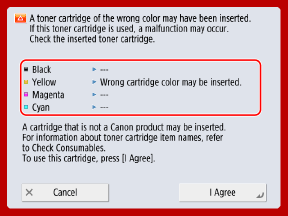
To replace the toner cartridge, press [Cancel].
To continue to use it as is, press [I Agree]. However, the warranty does not cover problems such as a machine malfunction or some functions not operating properly.
For troubleshooting problems, contact your dealer or service representative from whom you purchased the toner cartridge.
Cannot change the settings because the selected key is being used.
The key and certificate you tried to delete are being used in TLS encrypted communications or [Restrict Receiving for Each Function] for device information distribution.
Check the Functions Using TLS Encrypted Communication.
If a function is using the key and certificate you tried to delete, disable the TLS encrypted communication setting. Using TLS
Cannot find the selected server. Check the settings.
Could not identify the IP address, or the LDAP server authentication information is set to [Use (Security Authentication)], preventing identification of the host name.
Check That the DNS Settings on the Machine and the Settings on the DNS Server Are Correct.
Cannot connect to the selected server. Check the settings.
Could not connect to the LDAP server.
Check the Settings and Operation Status of the LDAP Server.
Check that the server address and port number of the LDAP server are set correctly. Registering LDAP Servers
When [Authentication Information] for the LDAP server is set to [Use (Security Authentication)], check to see if the UDP packet is being blocked by a filter. Registering LDAP Servers
Check that the LDAP server is operating normally.
Check That the Gateway Address of the TCP/IP Settings Is Set Correctly.
The setting item specified from Settings Menu cannot currently be used. Contact the system manager.
The selected setting item cannot be changed or is not supported.
Contact the system manager.
Contact the system manager.
The selected button may be unavailable. Contact the system manager.
The selected user does not exist, or the administrator privileges are disabled.
Select another user with administrator privileges.
Log in as an administrator, and register the button again.
Could not send.
Sending could not be performed because there is a problem with the data being sent or the server.
Is There an Error on the WebDAV Server or Proxy Server?
If there is an error, check the WebDAV server settings or the proxy server settings.
Check That You Can Access the Specified File or Folder, and Check the Path to the Folder.
Check that the WebDAV server is set correctly to enable external access to the specified file or folder.
Check that the destination is set correctly and whether the server (host name) or folder path is too long.
Wait a Moment, and Try Sending Again.
The WebDAV server may be busy.
Disable Divided Chunk Send.
Reduce the Size of the Data Being Sent, and Try Sending Again.
Session timed out. Wait a moment, then try to access the database again.
The session timed out because a fixed period of time has elapsed.
Wait a Moment, and Try to Access the Database Again.
If the session continues to time out, restart the machine. Restarting the Machine
Cannot complete searching due to timeout. Check the settings.
Could not complete the search within the specified time.
Set a Longer Search Timeout Time.
Could not execute because the file contains unsupported data.
Cannot generate pages because the description is incorrect.
Try printing the data in a format supported by the machine.
Try printing the data in a format supported by the machine.
Direct Connection: Ended due to an error.
Failed to connect to the mobile device, or there has been no data transfer to or from the connected mobile device for a fixed period of time.
Reconnect the Mobile Device.
Direct Connection: Ended because no other dev. could be found.
No connectable mobile device could be found.
Check That Wi-Fi Is Enabled on the Mobile Device.
Enable Wi-Fi on the mobile device if disabled.
Move the mobile device closer to the machine, and try connecting again.
If you cannot connect properly to the machine, contact your dealer or service representative.
* Depending on the mobile device, it may not operate properly.
Cannot log in because multi-factor authentication is enabled. Contact the system manager.
The Microsoft Entra ID server information is not set correctly.
Check the Microsoft Entra ID Server Information and Change the Settings, As Needed.
Adjusting gradation... Wait a moment.
The machine is automatically adjusting the gradation.
When the adjustment is completed, printing resumes automatically.
When the adjustment is completed, printing resumes automatically.
Could not access the database. Restart the device.
Failed to access the user database due to corruption of the user database or another factor.
Restart the Machine.
Digital Sig. Cert. Access Error
Unable to access the certificate when sending the user signature or device signature.
Check the Contents of the User Certificate or Device Certificate Registered to the Machine.
Certificate Expiration Date Error
The certificate has expired.
Check the Period of Validity of the Certificate Registered to the Machine.
If the certificate has expired, register a valid certificate. Registering a Key and Certificate or CA Certificate Obtained from an Issuing Authority
Check That the Date and Time Are Set Correctly on the Machine
Cannot log in because multiple users are registered under the same user name. Contact the system manager.
Could not identify the user name because case sensitivity is not enabled.
Enable Case Sensitivity for the User Name.
Register the User Using Another User Name.
Cannot register because the amount of data for registered buttons has reached the limit.
Additional buttons cannot be registered because the maximum number of registered buttons has been reached.
Overwrite a Registered Button, or Delete Unnecessary Buttons.
Cannot import because the number of buttons for registration has exceeded the upper limit.
Additional buttons cannot be registered because the maximum number of registered Personal or Shared buttons has been reached during import.
Delete Unnecessary Personal or Shared Buttons, and Try Importing Again.
Could not register because the number of registered users has reached the limit.
Additional users cannot be registered because the maximum number of users has been reached.
Delete Unnecessary Users.
Replace the toner cartridge. (XXXX)
The toner has run out.
* The toner color is displayed in (XXXX) of the message.
Replace with a New Toner Cartridge.
Press the icon displayed at the bottom right of the screen, and replace the toner cartridges while following the instructions on the screen. Replacing the Toner Cartridges
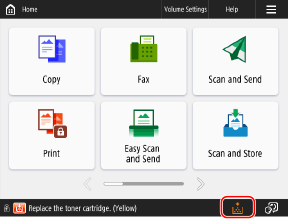
* If the black toner runs out, you do not have to press the icon at the bottom right of the screen. The screen for replacing the toner cartridge is displayed automatically.
Cannot recognize the toner cartridge. Pull out the toner cartridge, then insert it again or information about remaining toner won't be detected properly.
The toner cartridge is not inserted correctly, the toner cartridge has malfunctioned, or toner with an incorrect item name may have been inserted.
Check the Status of the Displayed Toner Cartridge.
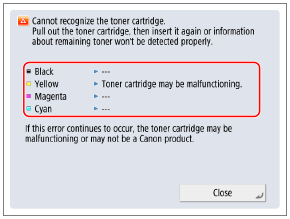
Reinstall the toner cartridge.
To continue to use it as is, press [Close]. However, the warranty does not cover problems such as a machine malfunction or some functions not operating properly.
For troubleshooting problems, contact your dealer or service representative from whom you purchased the toner cartridge.
XXXX toner is low. Replacement is not yet needed.
The toner cartridge is almost empty.
* The toner color is displayed in (XXXX) of the message.
Prepare a New Toner Cartridge for Replacement at Any Time.
You do not need to replace the toner cartridge at this time.
Cleaning the drum... Wait a moment.
The drum inside the machine is being cleaned.
When cleaning is completed, printing resumes automatically.
When cleaning is completed, printing resumes automatically.
The entered PIN is incorrect.
An incorrect PIN was entered.
Enter the PIN Again.
If you lost your PIN, contact the administrator.
The authentication server is not running. Contact the system manager.
Failed to communicate with the authentication server for an unknown reason.
Is an Ethernet Cable Disconnected from the Machine?
Is the Active Directory Server Started?
Start the Active Directory server if it has not been started.
Is the Key Distribution Center (KDC) Service of Active Directory Stopped?
Check the status of the service using the following procedure:
1. Start the service in the Windows management tool of Active Directory.
2. Check the status of the Active Directory domain service, and start the service if it has not been started.
Check Whether a Firewall Is Blocking Communication with the Active Directory Server.
Unblock the Kerberos service port (default setting: 88) of Active Directory if blocked.
* If Active Directory is specified as the login destination, communication is normally performed with the UDP protocol using port 88, but the communication data may be processed with the TCP protocol if it exceeds a certain size.
Cannot find the authentication server. Contact the system manager.
Failed to communicate with the authentication server for an unknown reason.
Is an Ethernet Cable Disconnected from the Machine?
Is the DNS Server Set Correctly?
Check the DNS Server Settings on the Machine and Set Them Again. When using a secondary DNS server, also check the settings of that server. Configuring DNS
Is the Specified DNS Server Started?
Start the DNS server if it has not been started.
Is the Service of the Specified DNS Server Stopped?
Check the status of the DNS server using the following procedure:
1. Start the service in the Windows management tool of the DNS server.
2. Check the status of the DNS server, and start the service if it has not been started.
Check Whether a Host Record Exists in the DNS Server.
Check whether the DNS server has a host record and whether the forwarder settings are correct.
No password is set on the authentication server side. Contact the system manager.
An appropriate password was not set on the server when configuring or upgrading Active Directory.
Reset the password of the account, and configure the settings again.
Reset the password of the account, and configure the settings again.
Cannot log in because anonymous access to the authentication server is not allowed. Contact the system manager.
Anonymous access is not allowed on the LDAP server.
Set the Authentication Information for Accessing the LDAP Server.
On the information input screen of the LDAP server, select the [Use authentication information] checkbox, and then set the user name and password according to the information registered in the LDAP server. Registering Authentication Server Information
The account information necessary to log in to the authentication server is invalid. Contact the system manager.
Could not log in as an administrator.
Are the User Name and Password Correct?
Correctly set the account information with administrator privileges.
Check That the Attributes Are Set Correctly.
If the attributes are set correctly, check that the values of the attributes registered on the server are correct. Registering Authentication Server Information
A competing IP address was found on the network.
The same IPv4 address set for the machine exists on the same network as the machine.
Change the IP Address of the Machine So That It Does Not Conflict with the IP Address of Another Device.
An IP address conflict was detected on the network (Main Line).
The same IPv4 address set for the main line of the machine exists on the same network as the machine.
Change the IP Address of the Main Line of the Machine So That It Does Not Conflict with the IP Address of Another Device.
An IP address conflict was detected on the network (Sub Line).
The same IPv4 address set for the sub line of the machine exists on the same network as the machine.
Change the IP Address of the Sub Line of the Machine So That It Does Not Conflict with the IP Address of Another Device.
Could not perform the operation because a network error occurred.
Could not save the scanned data or computer file to Advanced Box of the connection destination.
Check Whether the Advanced Box Settings on the Store Location Are Configured to Prohibit Folder Creation and File Saving.
Writing from external sources is disabled for the destinationAdvanced Box.
Did You Try to Save a File Directly Under a Shared Space or Personal Space?
Files cannot be saved directly under a Shared Space (share) or Personal Space (users) in Advanced Box. Save the file to a subfolder.
Is the Store Location Full Path (Folder Name Indicating the File Name and Save Destination) Too Long?
Shorten the folder name or file name or change the store location so that the number of characters of the path does not exceed 256 characters including "/share" or "/users".
Delete Any Unnecessary Files from the Store Location, or Change the Store Location.
The number of files and folders that can be saved may have exceeded the upper limit, or the storage capacity may be insufficient.
Check the network connection.
An Ethernet cable is not connected correctly to the machine.
Is an Ethernet Cable Disconnected from the Machine?
If you reconnected the Ethernet cable, restart the machine. Restarting the Machine
To Use the Machine Without Connecting to the Network, Set [Confirm Network Connection Setting Changes] to [Off].
Check the network connection. (Main Line)
The Ethernet cable of the main line is not connected correctly to the machine.
Is an Ethernet Cable Disconnected from the Machine?
If you reconnected the Ethernet cable, restart the machine. Restarting the Machine
To Use the Machine Without Connecting to the Network, Set [Confirm Network Connection Setting Changes] to [Off].
Check the network connection. (Sub Line)
The Ethernet cable of the sub line is not connected correctly to the machine.
Is an Ethernet Cable Disconnected from the Machine?
If you reconnected the Ethernet cable, restart the machine. Restarting the Machine
To Use the Machine Without Connecting to the Network, Set [Confirm Network Connection Setting Changes] to [Off].
A period longer than the password validity is set. Enter the settings again.
The password change prohibition period setting is longer than the password validity period.
Set a Password Change Prohibition Period That Is Shorter Than the Password Validity Period.
Eco (Staple-Free) is currently unavailable.
The Staple-Free unit has malfunctioned.
Contact your dealer or service representative.
Contact your dealer or service representative.
The job was canceled because features that cannot be used at the same time as Eco (Staple-Free) are set. Change the settings, then try again. Changing the staple position or paper type may allow Eco (Staple-Free) to be used.
The staple position is restricted depending on the paper type.
Set the staple position to [Top Left] or [Bottom Right], or change the paper type.
Set the staple position to [Top Left] or [Bottom Right], or change the paper type.
Scanning was canceled because the originals were not correctly fed.
A paper jam occurred in the feeder because multiple originals were fed together or an original with an unusable type was fed.
Remove the Originals from the Feeder, and Place Them Again.
Remove the jammed originals. Paper Jams in the Feeder
Check that the originals are appropriate, and place them again. Placing Originals
Remove the jammed originals from the feeder and any originals left in the feeder tray, then place them back in the feeder tray and press the [Start] key.
Scanning was canceled because the originals are jammed in the feeder.
Reset the Originals, and Press [ Start].
Start].Remove the original from the feeder.
You are using a function that cannot be used to scan with the feeder.
Place the original from the feeder onto the platen glass.
Place the original from the feeder onto the platen glass.
Cannot send because multiple destinations were specified.
Sequential broadcast is restricted.
Set [Restrict Sequential Broadcast When Fax Dest. Included] to [Off].
Performing multiple jobs...
Multiple jobs such as print and send jobs are being executed at the same time as the scan operation.
Wait a moment until the scan operation resumes.
Wait a moment until the scan operation resumes.
Cannot log in because an authentication error occurred in Department ID Management. Contact the system manager.
When using User Authentication, Department ID Management is enabled but Department IDs have not been assigned to users.
Assign Department IDs to Users.
If no administrator can log in, contact your dealer or service representative.
PDL Invalid DLG Input
The printer function of the machine is not working properly due to an error.
Restart the Machine.
If the message still appears after restarting the machine, make a note of the message and contact your dealer or service representative.
PDL DLG Rendering Error
The printer function of the machine is not working properly due to an error.
Restart the Machine.
If the message still appears after restarting the machine, make a note of the message and contact your dealer or service representative.
PDL DLG Unknown Error
The printer function of the machine is not working properly due to an error.
Restart the Machine.
If the message still appears after restarting the machine, make a note of the message and contact your dealer or service representative.
PDL DLG Memory Full
The work memory was insufficient for the system to process data (in particular, graphic and text processing).
Press [Skip Error] to Continue Printing.
If you skip the error, the page with the data that caused the error may not printed correctly.
PDL DLG Mem. Alloc. Err
The printer function of the machine is not working properly due to an error.
Restart the Machine.
If the message still appears after restarting the machine, make a note of the message and contact your dealer or service representative.
PDL GL Orig. Pt Unknown
The printer function of the machine is not working properly due to an error.
Restart the Machine.
If the message still appears after restarting the machine, make a note of the message and contact your dealer or service representative.
PDL GL Coord.Result
The printer function of the machine is not working properly due to an error.
Restart the Machine.
If the message still appears after restarting the machine, make a note of the message and contact your dealer or service representative.
PDL Invalid GL Input
The printer function of the machine is not working properly due to an error.
Restart the Machine.
If the message still appears after restarting the machine, make a note of the message and contact your dealer or service representative.
PDL GL Range Check
The printer function of the machine is not working properly due to an error.
Restart the Machine.
If the message still appears after restarting the machine, make a note of the message and contact your dealer or service representative.
PDL GL Memory Full
The work memory was insufficient for the system to process data (in particular, graphic and text processing).
Press [Skip Error] to Continue Printing.
If you skip the error, the page with the data that caused the error may not printed correctly.
PDL GL Mem. Alloc. Err
The printer function of the machine is not working properly due to an error.
Restart the Machine.
If the message still appears after restarting the machine, make a note of the message and contact your dealer or service representative.
PDL IMG Refer. Data Err
The TIFF or JPEG data includes data that cannot be processed by the machine.
Cancel Printing, Initialize the Machine, and Try Printing Again.
Initializing the machine increases the available memory. However, this deletes all print data in the memory of the machine. [Reset Printer]
PDL IMG Initial. Err
There is insufficient memory for printing TIFF or JPEG data.
Cancel Printing, Initialize the Machine, and Try Printing Again.
Initializing the machine increases the available memory. However, this deletes all print data in the memory of the machine. [Reset Printer]
PDL IMG Process. Error
An unknown error occurred while processing TIFF or JPEG data.
Cancel Printing, Initialize the Machine, and Try Printing Again.
All print data in the memory of the machine is deleted. [Reset Printer]
PDL IMG Invalid Data
The TIFF or JPEG data includes data that cannot be processed by the machine. In addition, data that cannot be processed by the machine may be sent because the machine has the same IP address as another device on the same network.
Change the IP Address of the Machine So That It Does Not Conflict with the IP Address of Another Device.
Press [Skip Error] to Continue Printing.
If you skip the error, the data that caused the error is not printed.
PDL IMG Work Memory Full
There is insufficient memory for processing TIFF or JPEG data.
Cancel Printing, Initialize the Machine, and Try Printing Again.
Initializing the machine increases the available memory. However, this deletes all print data in the memory of the machine. [Reset Printer]
Press [Skip Error] to Continue Printing.
If you skip the error, the data that caused the error is not printed.
PDL UFR II Work Mem Full
The memory required for processing the print data is insufficient. Or, the dedicated work memory for the UFR II mode could not be reserved.
When printing TIFF or JPEG data, print the data again using the image mode.
Change [Graphics] to [Images] in the UFR II printer driver. For details, see the help for the UFR II printer driver.
Cancel Printing, Initialize the Machine, and Try Printing Again.
Initializing the machine increases the available memory. However, this deletes all print data in the memory of the machine. [Reset Printer]
Press [Skip Error] to Continue Printing.
If you skip the error, the data that caused the error is not printed.
PDL UFR II Version Err
The machine received an unsupported version of UFR II data.
Install the UFR II printer driver for the machine, then print again. Installing Software and Drivers to the Computer
Press [Skip Error] to Continue Printing.
If you skip the error, the data that caused the error is not printed.
PDL UFR II Area Error
The printer function of the machine is not working properly due to an error.
Restart the Machine.
If the message still appears after restarting the machine, make a note of the message and contact your dealer or service representative.
PDL UFR II Admin Error
The printer function of the machine is not working properly due to an error.
Restart the Machine.
If the message still appears after restarting the machine, make a note of the message and contact your dealer or service representative.
PDL nn Rendering Error (where "nn" is the module name)
The printer function of the machine is not working properly due to an error.
Restart the Machine.
If the message still appears after restarting the machine, make a note of the message and contact your dealer or service representative.
PDL PDF Error
PDF data that cannot be processed by the machine was sent.
Optimize the PDF with Adobe Acrobat, and try printing again.
Open the PDF file in an application, and try printing again using the printer driver.
If the above solutions do not fix the problem, make a note of the message and contact your dealer or service representative.
PDL PDF Data Decode Err
The encrypted PDF file cannot be decrypted.
Is the Password for Printing Incorrect?
Enter the correct password, and try printing again.
Is Printing Not Allowed in the Security Settings of the PDF File?
If printing is not allowed, change the PDF file to allow printing in an application for editing PDF files.
PDL PDF Memory Full
There is insufficient memory to process the PDF data.
Optimize the PDF with Adobe Acrobat, and try printing again.
Divide the pages of the PDF data with Adobe Acrobat into multiple files, and try printing again.
Open the PDF file in an application, and try printing again using the printer driver.
PDL RIP Process. Error
The printer function of the machine is not working properly due to an error.
Restart the Machine.
If the message still appears after restarting the machine, make a note of the message and contact your dealer or service representative.
PDL XPS Error
An undefined error occurred.
Restart the Machine.
If the message still appears after restarting the machine, make a note of the message and contact your dealer or service representative.
PDL XPS Initialize Error
An unknown error, such as not being able to retrieve memory during initialization, occurred.
Restart the Machine.
If the message still appears after restarting the machine, make a note of the message and contact your dealer or service representative.
PDL XPS Rendering Error
An error occurred in the rendering system.
Restart the Machine.
If the message still appears after restarting the machine, make a note of the message and contact your dealer or service representative.
PDL Image Comp. Error
The printer function of the machine is not working properly due to an error.
Restart the Machine.
If the message still appears after restarting the machine, make a note of the message and contact your dealer or service representative.
PDL Rendering Timeout
The printer function of the machine is not working properly due to an error.
Restart the Machine.
If the message still appears after restarting the machine, make a note of the message and contact your dealer or service representative.
PDL Data Transfer Error
The printer function of the machine is not working properly due to an error.
Restart the Machine.
If the message still appears after restarting the machine, make a note of the message and contact your dealer or service representative.
PDL Reg. Access Error
The printer function of the machine is not working properly due to an error.
Restart the Machine.
If the message still appears after restarting the machine, make a note of the message and contact your dealer or service representative.
Cannot connect to the proxy server. Contact the system manager.
The proxy server information is not set correctly.
Check the Proxy Server Information and Change the Settings, As Needed.
Cannot change the password during the password change prohibition period. The current password needs to be used for the following number of days after it has been set: @1
You tried to change the password during the password change prohibition period.
Change the Password Change Prohibition Period or Clear the Setting.
Register to Home will be canceled and you will be returned to the function screen because you do not have permission to register buttons. Log in as an administrator, then try again.
Registering Personal or Shared buttons is restricted in user authentication.
Log In as an Administrator, and Register the Button Again.
Shared buttons can be registered after logging in as an administrator.
Allow Registration of Personal and Shared Buttons.
To allow registration of buttons to a user, change the following settings:
[Allow Home Screen Customization for Common Use]
[Allow Registration/Editing of Personal Buttons]
Load staples into the stapler unit.
There are no staples in the staple case of the stapler unit in the finisher.
Load Staples (Replace the Staple Case).
The password does not meet the policy requirements. Change the password.
The entered password violates the password policy.
Enter a Password That Complies with the Password Policy.
If you do not know the password policy, contact the administrator.
Timer settings for this device and the authentication server may not be synchronized. Contact the system manager.
The date and time settings of the machine and authentication server are different.
Synchronize the date and time settings of the machine and authentication server.
Synchronize the date and time settings of the machine and authentication server.
Toner still remains in the following cartridges that have been pulled out
A non-empty toner cartridge was removed from the machine.
Return the toner cartridge to the machine.
Check the access point selection for Wireless LAN Settings.
The wireless LAN of the connection destination is not safe because the access point is not encrypted or uses the WEP or WPA security standard.
Use an Access Point That Supports a Security Standard Other Than WEP and WPA.
* If you do not intend to change the wireless LAN of the connection destination and you want to prevent this message from appearing, disable the notification for when an encryption method vulnerability is found for the selected wireless LAN.
Wireless LAN communication error. Turn main power OFF & ON.
An unknown error occurred when configuring the wireless LAN connection.
Restart the Machine.
Wireless LAN communic. error. Check Wireless LAN Information.
An unknown error occurred when configuring the wireless LAN connection.
Check the Wireless LAN Settings.
Wireless LAN access point connection vulnerability was detected.
The wireless LAN of the connection destination is not safe because the access point is not encrypted or uses the WEP or WPA security standard.
Use an Access Point That Supports a Security Standard Other Than WEP and WPA.
* If you do not intend to change the wireless LAN of the connection destination and you want to prevent this message from appearing, disable the notification for when an encryption method vulnerability is found for the selected wireless LAN.
Cannot send because the memory is full. Wait a moment, then try again.
Could not send the fax because of insufficient memory.
Lower the Resolution for Scanning the Original.
Delete Any Unnecessary Files from the Memory to Increase the Available Memory.
* If the message frequently appears even after applying the above solutions, contact your dealer or service representative.
Could not perform the operation because the memory is full.
When using the Scan and Store function, scanning was canceled because the memory became full while scanning the original.
Delete any unnecessary data to increase the available memory, and try scanning the original again.
Delete any unnecessary data to increase the available memory, and try scanning the original again.
Scanning will be canceled because the memory is full. Wait a moment, then try again.
When using the Copy function, copying was canceled because the memory became full while scanning the original.
Copy the remaining originals after printing of the data in the memory is complete.
Copy the remaining originals after printing of the data in the memory is complete.
Scanning will be canceled because the memory is full. Do you want to send the scanned pages?
When using the Fax or Scan and Send function, scanning was canceled because the memory became full while scanning the original.
Press [Yes] to send the scanned pages. Scan the remaining originals after sending is complete.
Press [Yes] to send the scanned pages. Scan the remaining originals after sending is complete.
Scanning will be canceled because the memory is full. Do you want to print the scanned pages?
When using the Copy function, copying was canceled because the memory became full while scanning the original.
Press [Yes] to print the scanned pages. Copy the remaining originals after printing is complete.
Press [Yes] to print the scanned pages. Copy the remaining originals after printing is complete.
Scanning will be canceled because the memory is full. Do you want to store the scanned pages?
When using the Scan and Store function, scanning was canceled because the memory became full while scanning the original.
Press [Yes] to store the scanned pages. Scan the remaining originals after storing is complete.
Press [Yes] to store the scanned pages. Scan the remaining originals after storing is complete.
The amount of data stored for registered users has reached the limit. You can perform operations, but no data (job setting logs, personal settings content, etc.) can be stored this time. To be able to store data from the next time you log in, unnecessary data must be deleted from other users. Contact the system manager or refer to the manual for details.
New user setting information could not be stored because the maximum number of registered users has been reached.
Delete Unnecessary User Setting Information.
* You can configure the settings to automatically delete old user setting information when the maximum number of registered users is reached. [Action When Maximum Number of Users Exceeded]
If You Are Not Using the Personalization Function, Disable It.
When the personalization function is enabled, user setting information is stored. If you are not using this function, delete the stored user setting information, and disable the personalization function.
Register to Home will be canceled because you are not logged in. Return to the function screen, log in, then try again.
Registering Shared buttons is restricted in user authentication.
Log In as an Administrator, and Register the Button Again.
Shared buttons can be registered after logging in as an administrator.
Check the user name, password, or settings.
An incorrect user name, password, or domain name was used for LDAP server authentication.
Set the Correct Authentication Information of the LDAP Server.
Correctly set the user name, password, and domain name according to the information registered in the LDAP server. Registering LDAP Servers
Load paper.
The paper source is out of paper, or the paper settings differ from the paper that is loaded.
Load Paper in the Paper Source Displayed on the Control Panel.
Adjust the Paper Source Guides to the Edges of the Paper.
Adjust the paper guides of the paper source to the edges of the paper.
If the paper guides are not aligned properly, the loaded paper size is not detected correctly.
If the paper guides are not aligned properly, the loaded paper size is not detected correctly.
Press [ Status Monitor], and Check the Paper Settings in [Consumables/Others].
Status Monitor], and Check the Paper Settings in [Consumables/Others].If the paper settings differ from the paper that is loaded, change the paper size and paper type settings.
If you are using the multi-purpose tray, reset the loaded paper, and change the settings.
If you are using the multi-purpose tray, reset the loaded paper, and change the settings.
Check the Paper Settings on the Printer Driver or Application.
Check the paper settings on the [Printing Preferences] screen of the printer driver or the print screen of the application. If the paper settings differ from the paper that is loaded, match them with the paper or load the correct paper.
Scanning was canceled because the data size of the scanned original exceeds the limit. Scanning may be possible if sharpness is reduced, or Original Type is set to Text.
Scanning was canceled because the data size of the scanned original exceeds the limit of the machine.
Change the Settings, and Try Scanning Again.
Try scanning with the following settings: Adjusting the Image Quality
Adjust the [Sharpness] setting to a lower level.
Set [Original Type] to [Text].
Some applications require license confirmation.
The license file of a MEAP application will expire soon.
Add a license file.
Add a license file.
Always Require Two-Factor Auth. on Remote UI is recommended.
Unauthorized access from Remote UI is possible.
Use of Two-Factor Authentication for Remote UI Is Recommended.
Log in to Remote UI as an administrator click [Settings/Registration] [User Management] [Authentication Management] [Basic Settings] [Edit...] select [All Users] or [Administrators Only] for [Always Require Two-Factor Authentication] in [Remote UI Authentication] |
* If you do not intend to use two-factor authentication and you want to prevent this message from appearing, disable the notification for when an Internet security issue is detected.
Cooling... Wait a moment.
The inside of the machine is being cooled because the internal temperature increased.
Wait a moment until the process is complete.
Wait a moment until the process is complete.
Information set by the currently logged-in user will not be stored.
New user setting information could not be stored because the maximum number of registered users has been reached.
Delete Unnecessary User Setting Information.
* You can configure the settings to automatically delete old user setting information when the maximum number of registered users is reached. [Action When Maximum Number of Users Exceeded]
Login failed. Anonymous access to the LDAP server is not allowed.
Anonymous access is not allowed on the LDAP server.
Set the Authentication Information of the LDAP Server.
On the information input screen of the LDAP server, select the [Use authentication information] checkbox, and then set the user name and password according to the information registered in the LDAP server. Registering Authentication Server Information
Login failed. The account information required to log in to the LDAP server is incorrect. Check the user information used to log in to the LDAP server.
The user name or password of the LDAP server is not set correctly.
Set the Correct Authentication Information of the LDAP Server.
Correctly set the user name and password according to the information registered in the LDAP server. Registering Authentication Server Information
Cannot log in. Check the login destination.
The login destination information entered on the mobile device is incorrect
Check the login destination, and log in again.
Check the login destination, and log in again.
Cannot store the password because the number of passwords stored for each user has reached the limit.
The login user password cannot be stored because the maximum number of passwords has been reached.
Delete unnecessary password information.
Delete unnecessary password information.