Importing Registered Data from a USB Memory Device
Data that was exported to a USB memory device can be imported to the machine. For more information about the settings that cannot be imported, see Exporting/Importing Registered Data.
|
IMPORTANT
|
|
The existing Address Book and menu options data is overwritten when you import the data. The Address Book entries, for example, are replaced with the ones that are included in the imported data.
To import the Address Book data, disable the <Restrict New Destinations> setting.
The settings that are registered in <Favorite Settings> are deleted when you import the Address Book data (Registering Frequently Used Fax Settings Registering Frequently Used Scan Settings (E-mail/File Server)).
|
1
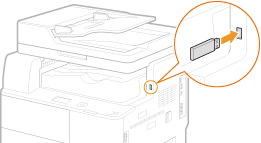
Connect a USB memory device to the USB memory port.
IMPORTANT:
The USB port on the right side of the machine toward the rear is not available.
Do not disconnect, jostle, or turn OFF the machine or USB memory device while the data is being transferred.
2
Press  .
.
.3
Use  /
/ to select <System Management Settings>, and press
  .
.
/ to select <System Management Settings>, and press .If the logon screen appears, enter the correct ID and PIN using the numeric keys, and then press  . Logging on to the Machine
. Logging on to the Machine4
Select <Import/Export of Settings>  <Import>.
<Import>.5
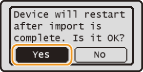
Select <Yes>, and press .
.
6
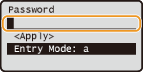
Enter the password, select <Apply>, and press .
.Enter the password that was set when exporting the data (Exporting Registered Data to a USB Memory Device).
 Entering the Address Book PIN (imageRUNNER 1435iF / 1435i only)
If the Address Book PIN is set (Setting a PIN for Address Book), the screen shown below is displayed. After entering the PIN, select <Apply> and press . If you select <Skip>, the Address Book data is not imported.
. If you select <Skip>, the Address Book data is not imported. 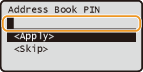
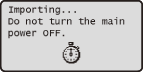
Importing starts. The machine restarts automatically after the data is imported.
7
Disconnect the USB memory device after the machine restarts.
See step 7 in Exporting Registered Data to a USB Memory Device for the procedure.