Status of Press
The media and consumable status can be checked in the various parts of the press.
NOTE
The press status can also be checked using the main control panel. For details on the display of the main control panel and settings regarding the status, see the PRISMAsync Print Server for iX1700 Operation guide.
Status Indicators
You can check the occurrence of errors regarding media and consumables, and the necessity of resolving those errors in the various parts of the press.
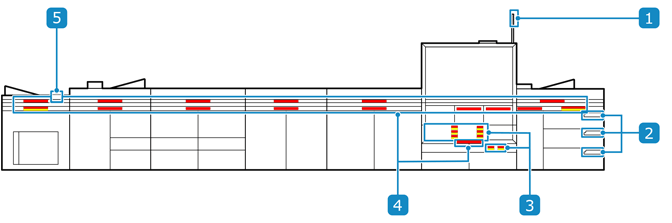

Status Indicators
 Attention light
Indicates the press operation status and the necessity of clearing paper jams and replacing ink packs or parts. For details, check  to
to  .
.
to . PIM control panelIndicates the PIM status and the amount of media remaining. PIM (Paper Input Module)
 Ink LED
Indicates the necessity of replacing the ink/conditioning liquid/maintenance liquid pack or disposing of the waste ink. Consumable Status
 Navigation LED
Indicates whether a paper jam has occurred, the amount of media remaining in the paper tray, and the space remaining in the top tray. Media Status
 STM control panel
Indicates the amount of stacked media. STM (Stacking Module)
Main control panelDisplays messages and icons on the dashboard and popups when actions are required.
Colors
The following colors are used to indicate the status of the various parts.
Colors | Status |
Green | No measures are required. |
Orange | Warns that the press will stop soon due to insufficient media, consumables, ink waste container capacity, or stackable media capacity. |
Red | The following measures are required immediately because the press cannot continue printing. Load media. Loading Media Remove printed media. Removing Printed Media from the STM Replace consumables. Replacing Consumables Empty the ink waste container. Disposing of Waste Ink/Waste Conditioning Liquid Remove media from the trays of the PIM and TM. Clear the paper jam. When Paper Jams |
Media Status
You can check the location where a paper jam has occurred and press status such as the tray capacity with the navigation LEDs of each module. Carry out the required measures in the corresponding location according to the LED color.
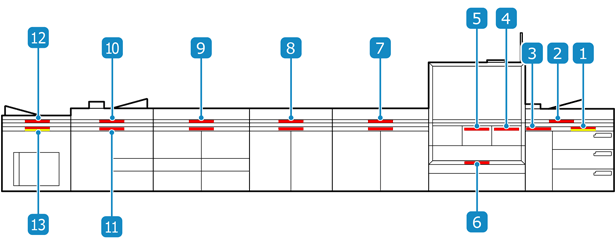
Locations Where Measures Are Required
The primary path is the transport path used when printing on the front side of the media. The secondary path is the transport path used when printing on the back side of the media.
PIM paper trayPIM horizontal path/PIM waste trayPIM vertical pathPM transport path (near registration unit)PM transport path (near print belt)PM transport path (secondary path) FM1 transport path
Top: Primary path
Bottom: Secondary path
 FM2 transport path
Top: Primary path
Bottom: Secondary path
 CM transport path
Top: Primary path
Bottom: Secondary path
 TM transport path (primary path)/TM waste tray
 TM transport path (secondary path)
 STM transport path/STM top tray
 STM transport path/STM stack tray
Colors
Colors | Status |
Orange | Measures are required because an error could occur. For a paper tray: Load media, as it is running low. Loading Media For the STM stack tray: Remove the printed media, as free space is running low. |
Red | Measures are required when any of the following errors have occurred: Paper jam When Paper Jams No media in paper tray Loading Media For the trays of the PIM/TM/STM: Remove the printed media from the full tray. |
Consumable Status
The status of the ink/conditioning liquid/maintenance liquid and the ink waste container can be checked using the ink LED/waste ink LED of the PM (Print Module). Perform the required measures according to the LED color.
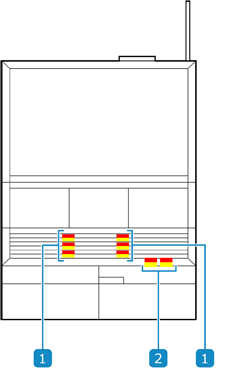 Ink LED
Indicates the status of the ink/conditioning liquid/maintenance liquid with the following colors. Replacing Consumables
LED Colors | Status |
Orange | The packs need replacement because the ink/conditioning liquid/maintenance liquid is running low. If the attention light is also on, printing may stop. |
Red | The packs need replacement because there is no ink/conditioning liquid/maintenance liquid. |
Indicates the status of the ink waste container with the following colors. Disposing of Waste Ink/Waste Conditioning Liquid
LED Colors | Status |
Orange | The waste ink needs to be disposed of because space in the ink waste container is running low. If the attention light is also on, printing may stop. |
Red | The ink waste container is full. The waste ink needs to be disposed of. |
Remaining Ink Status Indicators
Ink is supplied to the buffer tank from the ink pack, and the ink in the buffer tank is used for printing. Printing can continue even when the ink pack is empty. Printing will stop once the ink in the buffer tank is depleted.
The ink in the ink pack and the buffer tank is reflected in the status indicators. You can check the status with the main control panel and the ink LED. The icons on the main control panel use the same color as the ink LED.
*The same applies to conditioning liquid.
Example:
The left side of the illustrations in "Status" indicates the ink pack and the right side indicates the buffer tank.
Status | Ink LED Color | Icon on Main Control Panel | Description |
 | Red |  | There is no ink. The ink pack needs to be replaced. |
 | Orange |  | The ink pack needs to be replaced. |
 | - |  | The ink pack does not need to be replaced. |
 | - |  | The ink pack does not need to be replaced. Ink is being supplied from the ink pack to the buffer tank. |
*The examples in "Icon on Main Control Panel" are for the yellow ink.