 ] on the operation panel. By default, the [Home] screen is displayed after the power is turned ON and immediately after the startup screen closes, and immediately after logging in. [Home] Screen
Screens Displayed on the Operation Panel
The following are the main screens of the operation panel.
[Home] Screen
This screen is displayed when you press [] on the operation panel. By default, the [Home] screen is displayed after the power is turned ON and immediately after the startup screen closes, and immediately after logging in. [Home] Screen
] on the operation panel. By default, the [Home] screen is displayed after the power is turned ON and immediately after the startup screen closes, and immediately after logging in. [Home] Screen
[Status Monitor] Screen
This screen is displayed when you press [Status Monitor] on the [Home] screen and other locations. Use this screen to check the information of the machine, usage and logs, network settings, and error information. [Status Monitor] Screen

[Menu] Screen
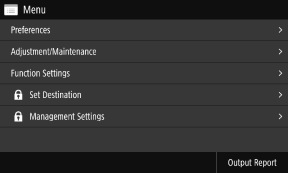
This screen is displayed when you press [Menu] on the [Home] screen. Use this screen to configure the various settings of the machine.
When the System Manager ID is set, the login screen may be displayed when certain items are selected. Only users who know the System Manager ID and PIN can log in and change the settings.
When the System Manager ID is set, the login screen may be displayed when certain items are selected. Only users who know the System Manager ID and PIN can log in and change the settings.
Message Display
Messages are displayed on the screen when errors occur and the machine is out of paper or toner in the toner cartridges.
If a troubleshooting solution is displayed, follow the on-screen instructions to solve the problem.
If a troubleshooting solution is not displayed, check the cause and solution by referring to the message or error code.
A Message Appears
An Error Code Is Displayed
If a troubleshooting solution is displayed, follow the on-screen instructions to solve the problem.
If a troubleshooting solution is not displayed, check the cause and solution by referring to the message or error code.
A Message Appears
An Error Code Is Displayed
Display example: When an Error Occurs  |
When a Message Appears at the Bottom of the Screen If the message is too long to display at once, it may be separated into smaller segments and displayed alternately. 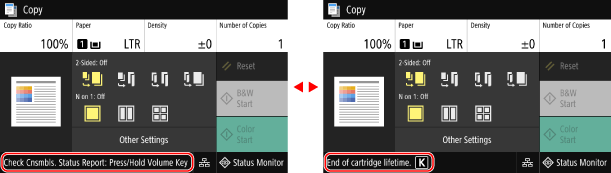 |
 |
Changing the Screen DisplayYou can change the operation panel display such as by changing the display language and units, and show or hide messages. [Display Settings] You can invert screen colors and adjust the brightness to make the screen easier to view. [Accessibility] Clearing the Settings AutomaticallyBy default, if no operations are performed after a certain period of time, the settings being configured on the screen are cleared, and the [Home] screen is displayed. You can change the time until the settings are cleared and the screen that is displayed after. [Auto Reset Time] [Function After Auto Reset] |